MSGBOX Display Popup Message Box
Format
MSGBOX text$ [ ,title$ [ ,options$ [ ,selection$] ] ]
Where:
options$ | Customized message box options. Optional string expressions, separated by commas if you include a list. Supported options for MSGBOX buttons include:
| ||||||||||||||||||||||||||||||||
selection$ | String variable to return the button selected by the user. Possible values are "ABORT", "CANCEL", "IGNORE", "NO", "OK", "RETRY", "YES" or "TIMEOUT". | ||||||||||||||||||||||||||||||||
text$ | Text to appear in the message box. String expression. | ||||||||||||||||||||||||||||||||
title$ | Title of the message box. String expression. (If you omit this field, the title will be "Error".) | ||||||||||||||||||||||||||||||||
Description
Use the MSGBOX directive to display a window with a message in the middle of the screen. The text will be split into segments (lines) based on the system settings for screen width and centering characteristics. You can define multiple lines of text by using a SEP character between lines. Use the options$ string to identify the buttons and/or icons you want to include in the message box. The user's message box button selection is returned in a string variable.
Example:
msgbox "Remove the customer record","Confirmation Please","?,YESNO",X$
if X$<>"YES" \
     then return
remove (1,key=K$)Customizing the Message Box
If the 'MX' system parameter is set, the system calls sub-programs *ext/msgbox.gui (user-defined) or *ext/system/msgbox.gui (PxPlus-supplied) to process the request instead of the standard Windows message box. By default, PxPlus sets the 'MX' parameter to On when *ext/msgbox.gui is found to exist.
The msgbox.gui sub-program creates and displays a message box that is similar to the standard Windows system message box but will use Windows 7-style buttons if the '4D' mnemonic is enabled or use buttons with squared corners if using Windows 10. Starting with PxPlus 2026 Update 1, it will use TrueGuiFont, rounded buttons and updated colors for a more modern look. Unlike the standard Windows message box, the message will be displayed centered on the current window, and up to three custom buttons can be defined.
(PxPlus message box modernization was added in PxPlus 2026 Update 1.)
Several internal bitmap names for standard Windows bitmaps are available for displaying the embedded OS icons used by the normal message box API call: !Sys_Stop, !Sys_Question, !Sys_Infoand !Sys_Exclamation.
The button text OK, YES, NO, CANCEL, ABORT, RETRY, CONTINUE and IGNORE are included in the system message library file (i.e. *mlfile.en) to provide support for multilingual systems. The message numbers are defined as follows:
| MSG( ) Number | String |
|---|---|
| 160 | "OK" |
| 161 | "OK,Cancel" |
| 162 | "&Retry,Cancel" |
| 163 | "&Abort,&Retry,&Ignore" |
| 164 | "&Yes,&No" |
| 165 | "&Yes,&No,&Cancel" |
Use the DEF MSG directive to temporarily override the message text associated with the MSG( ) number. This directive allows messages to be changed on the fly.
Example:
MSG(164) "&Yes,&No" can be changed to another language:
def msg(164) ="&Oui,&Non"Using Custom Buttons
When using the *ext/system/msgbox.gui program, you can define up to three custom buttons to display on a custom message box.
BTN1=text$
BTN2=text$
BTN3=text$Where:
text | Indicates the text to display on the custom button. When the button is selected, the selection$ value will be set to BTN1, BTN2 or BTN3. |
Example:
msgbox "What is the correct response?","Answer", "?,BEEP,BTN1=One,BTN2=Two,BTN3=Three,3",X$This example produces the following message box when the 'MX' system parameter is set and the PxPlus-supplied program *ext/system/msgbox.gui is in use:
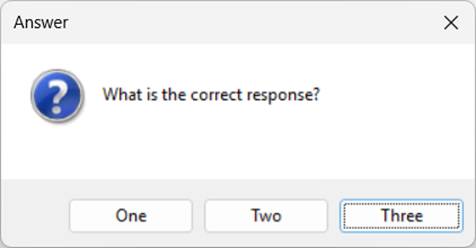
If the default "Three" button is selected, X$ will be set to BTN3.
Using Customized Messages with WindX
Use of this facility under WindX requires some additional effort by the developer; i.e. will the sub-program be running on the host or on the workstation. If the program runs on the host, it will transmit the screen drawing information to the workstation just like any other PxPlus program. If the program is to run on the workstation, the host will simply send the MSGBOX parameters to WindX, which in turn runs the program locally (assuming it is present).
The setup for WindX is described as follows:
To run the host's msgbox.gui, set the 'MX' system parameter. No change is required for workstation software.
To run the workstation's msgbox.gui, ensure that the program exists on the workstation, then execute [wdx]Set_param 'MX' to set the parameter locally.
This takes advantage of the fact that PxPlus automatically sets 'MX' based on the existence of a (user-defined) *ext/msgbox.gui. Simply copy the msgbox.gui from *ext/system to the *ext directory on the host. The system will use it and send screen drawing directives to the workstation. If it is copied (or installed) to *ext on the WindX workstation, the system will automatically use it, assuming it is not overridden by the host.
This customizable MSGBOX also takes advantage of the 'BEEP' mnemonic.
See Also
'MX' User-Defined Message Box
DEF MSG Define Temporary Message