EZWeb Server
PxPlus EZWeb Server is an easy-to-use Web server that is ideally suited for use with iNomads, PxPlus Dashboard, PxPlus Web Services and PxPlus IDE Main Launcher (Web). For many low volume installations and/or development situations where all that may be needed is a standard Web server, EZWeb Server can meet this need by providing the following functionality:
Ability to change port (Default port is 80 for HTTP or 443 for HTTPS)
Secure sockets (HTTPS)
Logging of process start, stop and errors
Multi-user/task support
File uploads and downloads
Running PxPlus Programs
In addition to serving static files, EZWeb Server can run PxPlus programs, just as the Apache HTTP interface does.
When a request targets a file with a .pxp or .pvp extension (or a compiled PxPlus program), EZWeb runs the program rather than returning the file and sends the program's output back to the browser.
While the program runs, the request environment is available through the standard Web Global Variables; for example, %request_method$, %query_string$, %args$[ ], %body_content$, the %http_*$ request headers, and the response-control variables such as %exit_code and %content_type$.
Because the Apache interface and EZWeb Server share the same handler, the same program runs unchanged under either server. A few values differ under EZWeb Server. For example, %server_software$ is "EzWeb/Server". These differences are noted for specific variables in the Global Variables documentation.
Configuring EZWeb Server
When EZWeb starts, it looks in the starting directory for a configuration file (optional) called ezweb.conf, which is used to define additional configuration options. If this file is not found, then the defaults will be used, along with any other options that may have been specified when launching EZWeb. See Running EZWeb Server.
Below is a list of the valid configuration
directives that can optionally be used (in alphabetical order):
Directive | Description | ||||||||||||||
|---|---|---|---|---|---|---|---|---|---|---|---|---|---|---|---|
accesslog _pathname_ | Used to enable the access log. The access log records all requests processed by the server. The location and name of the access log file is determined by _pathname_. If the file specified by _pathname_ does not exist, it will be created. The directory itself must exist. Log entries will be in the standardized Common Log Format (CLF). Using this format means that the EZWeb server access logs can be readily analyzed by a variety of Web analysis programs that support the Common Log Format. Example: 127.0.0.1 - - [10/Feb/2023:16:43:04 -0500] "GET /webster.pxp HTTP/1.1" 200 3892 Format: requester_ip identity authorization_user date request_info http_status response_size Where:
(The accesslog directive was added in PxPlus 2023.) | ||||||||||||||
alias inbound_name alternate_pathname | Used to redirect any request to inbound_name (or its subordinate files/directories) to a specified alternate_pathname. | ||||||||||||||
allowemptyhost | Used to allow web requests that do not contain a "Host" header. (The allowemptyhost directive was added in PxPlus 2026 Update 1.) | ||||||||||||||
allowemptyuseragent | Used to allow web requests that do not contain a "User Agent" header. (The allowemptyuseragent directive was added in PxPlus 2026 Update 1.) | ||||||||||||||
host hostname pathname | Used to provide for multiple host directories based on the host name on any inbound request. | ||||||||||||||
nobrowse | If this directive is specified, the server will disable all directory browsing. (The nobrowse directive was added in PxPlus 2018.) | ||||||||||||||
pfxpswd password | Used to indicate the PFX certificate password if a PFX certificate is defined for the secure directive. This can be blank or not defined to define an empty password. (The pfxpswd directive was added in PxPlus 2019.) | ||||||||||||||
port portno | Used to set the port number to be used by EZWeb. | ||||||||||||||
privkey pathname | Used to indicate the PEM file, which contains the certificate private key. This is needed only if you have defined the secure directive and have separate PEM files for the certificate and private key. (The privkey directive was added in PxPlus 2019.) | ||||||||||||||
root pathname | Used to change the default root directory for EZWeb. By default, EZWeb will run in the *plus/inomads directory. | ||||||||||||||
secure pathname | Used to indicate the server is to run using SSL/TLS and to provide the PEM or PFX file, which contains the server certificate information. Renewed certificates are automatically reloaded. See Automatic Security Certificate Reload. (PFX support was added in PxPlus 2019.) | ||||||||||||||
shutdown password | Specifies a password that can be used to provide for remote shutdown of EZWeb. A remote shutdown will occur if the EZWeb server receives a request for "/ShutDown?password". |
Running EZWeb Server
EZWeb Server is launched either from the PxPlus IDE Main Launcher (see Method 1) or from the Command line by running *ezweb/server (see Method 2). By default, the program will run against port 80 (the standard Web port for HTTP requests) and will support the iNomads interface based on the parameters found in the *plus/inomads/inomads.conf file.
Method 1 - From the PxPlus IDE Main Launcher:
To start EZWeb Server from the PxPlus IDE Main Launcher, expand the Web Deployment category and select Launch EZWeb Server.
The Launch EZWeb Server window is displayed. The Secure check box allows you to enable (or disable) secure TLS/SSL mode for the EZWeb Server.
(The ability to enable/disable secure TLS/SSL mode for the EZWeb server was added in PxPlus 2022.)
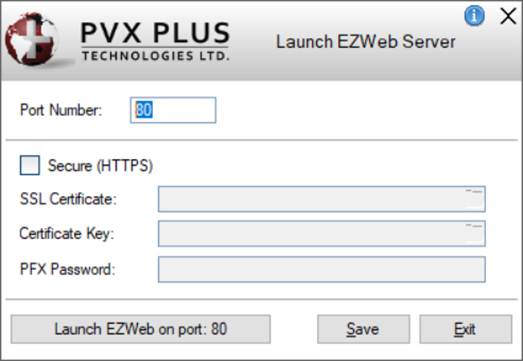
This window consists of the following:
Port Number | Enter the TCP/IP Port number to be used by the EZWeb Server. To set a different port number as the default, enter the desired port number and click the Save button. The next time you invoke the Launch EZWeb Server window, it will default to this port number. |
Secure (HTTPS) | Check box that is used to enable/disable secure TLS/SSL mode for the EZWeb Server. If the Port Number is 80 (the default HTTP port) and the Secure check box is selected, the Port Number will change to 443 (the default HTTPS port). If the Port Number is 443 and the Secure check box is unchecked, the Port Number will change to 80. (The Secure check box was added in PxPlus 2022.) |
SSL Certificate | Specify a pathname to a PEM or PFX file that contains the server certificate information, or click the Query button to select a file. For information on the type of certificate PxPlus uses, see PxPlus SSL/TLS Support. (The SSL Certificate input was added in PxPlus 2022.) |
Certificate Key | Specify a PEM file that contains the certificate private key, or click the Query button to select a file. The Certificate Key is needed only if you have two separate PEM files, one for the certificate and the other for the private key. (The Certificate Key input was added in PxPlus 2022.) |
PFX Password | Specify the PFX certificate password if a PFX certificate is defined for the SSL certificate. This can be blank or not defined to define an empty password. (The PFX Password input was added in PxPlus 2022.) |
Launch EZWeb | The text on this button reflects the current port number (e.g. Launch EZWeb on port: 80). When this button is clicked, a message lets you know that EZWeb has started on the specified port number. If the Secure option was set to On, the message also indicates that EZWeb is running in secure (HTTPS) mode. Following that, an EZWeb Server button displays in the system tray to indicate that it is running in the background. Hover over this button to display a tooltip showing the port number. If the Secure option was set to On, the tooltip shows ";secure" after the port number (e.g. PxPlus-version_number:Ezweb Server (8088;secure)). (Support to show EZWeb running in secure mode was added in PxPlus 2022.) When a different port number is entered, the Launch EZWeb button immediately reflects the port number specified, indicating that EZWeb will launch on that port when this button is clicked. |
Save | Saves the port number, along with the secure settings (if specified). The next time you invoke the Launch EZWeb Server window, it will default to the saved port number and secure settings. If you only want to run an instance of EZWeb Server on a particular port but not save that port number as the default, then do not click the Save button. Simply select the Launch EZWeb button to start EZWeb on the port you just specified. |
Exit | Closes the Launch EZWeb Server window without launching EZWeb Server and does not save any changes. |
(The ability to launch and save specific port numbers was added in PxPlus 2016.)
(The EZWeb tooltip was added to the system tray in PxPlus 2016.)
Method 2 - From the Command Line:
pxplus.exe -bkg *ezweb\server [-arg port [security[root]]]
Where:
port | This argument is used to set the port number to be used by EZWeb. If the port argument is omitted, the port will default to the port defined in ezweb.conf, and if that is not defined, then port 80 will be used. | ||||
security | This argument is used to indicate that the server is to run using SSL/TLS and to provide the pathname to a PEM or PFX file, which contains the server certificate information. If the pathname contains spaces or one of the options below is needed, this argument should be within double quotes. Options are supported and can be included by appending a space and one of the following to the security argument:
The secure directive in the ezweb.conf file overrides this argument if defined. If neither this argument nor the secure directive in ezweb.conf is defined, EZWeb will run without SSL/TLS encryption. Renewed certificates are automatically reloaded. See Automatic Security Certificate Reload. (PFX support, the privkey option and the pfxpswd directive were added in PxPlus 2019.) | ||||
root | This argument is used to change the default root directory for EZWeb. The root directive in the ezweb.conf file overrides this argument if defined. If neither this argument nor the secure directive in ezweb.conf is defined, EZWeb will run in the *plus/inomads directory. |
Examples
Example 1 - To run the EZWeb Server on port 8080, you could use the following Command lines:
Windows: | |
"C:\PVX Plus Technologies\PVX Plus\pxplus.exe" -bkg *ezweb\server -arg 8080 | |
UNIX/Linux: | |
/pxplus/pxplus "*ezweb/server" -arg 8080 |
Example 2 - If you have a security certificate called mycert.pem that you would like to use, then your Command line would look something like this (note the use of port 443, which is the default port for secure HTTPS):
Windows: | |
"C:\PVX Plus Technologies\PVX Plus\pxplus.exe" -bkg *ezweb\server -arg 443 mycert.pem | |
UNIX/Linux: | |
/pxplus/pxplus "*ezweb/server" -arg 443 mycert.pem |
Example 3 - If using an SSL certificate that is not in the single PEM file format, then your Command line would look something like this (note the use of port 443, which is the default port for secure HTTPS):
Windows: | |
"C:\PVX Plus Technologies\PVX Plus\pxplus.exe" -bkg *ezweb\server -arg 443 "C:\Users\User\SSL Certificate\mycert.pfx pfxpswd=mypassword" | |
UNIX/Linux: | |
/pxplus/pxplus "*ezweb/server" -arg 443 "/home/user/ssl certificates/mycert.pem privkey=/home/user/ssl certificates/mykey.pem" |
Shutting Down EZWeb Server
To shut down EZWeb Server, use one of the following methods:
Method | Description | ||||||
|---|---|---|---|---|---|---|---|
EZWeb Server button (System Tray) | Click the EZWeb Server button and then click on the tooltip "Shutdown EzWeb server (xxxx / y users)" (where xxxx = port number and y = user count). If EZWeb Server is running in secure (HTTPS) mode, the tooltip shows ";secure" after the port number (e.g. Shutdown EzWeb server (8088;secure / 4 users)). (EZWeb Server shutdown capability was added to the system tray in PxPlus 2016.) | ||||||
Enter a remote termination request | To invoke a remote termination request, send the following URL: http://_servername_/ShutDown?uuuuuuu-ssssssss Where:
The uuuuuuu-ssssssss code can be overridden in a *EZWeb config file with ShutDown=xxxxxx where xxxxxx is the value required (no limit) instead of User ID and Serial Number. |
Installing as a Service on Windows
EZWeb Server can be installed as a Windows service using one of the following methods:
Method 1 - From the PxPlus IDE Main Launcher:
Expand the Installation and Setup category and select Install Windows Services to launch the Install Windows Services interface.
From the Type of Service drop box, select EZWeb Server. After entering the service settings in the grid, select the Install button.
Method 2 - Run the program *ezweb/install from the Command line:
It will ask you if you want to install the service.

If so, you will need to enter the Starting Directory (default is the *ezweb directory), the SSL Certificate and the Port Number to use:

     ->run "*ezweb/install"
     Service Not currently installed
     Do you want to install the service (Y/N):Y
     Starting directory............:C:\pxplus\lib\_ezweb
     SSL Certificate...............:
     Port to use...................:80

To delete or change the service settings, simply re-run *ezweb/install.Once installed, you will need to run the Windows Control Panel and start the service manually. If desired, you can set the service to automatically start; however, the install script, by default, sets the service to Manual start.
Log Files
Error Log
You can create a directory in the EZWeb start directory called ezweb_logs (preferred by EZWeb) or create the directory called *ezweb/logs. The EZWeb Server will record each time it starts or stops, as well as any internal errors that it encounters, in textual log files within this new directory.
(Support for allowing an alternative directory was added in PxPlus 2023.)
The log files will be named:
YYYY-MM.log
Where:
YYYY is the current year.
MM is the current month.
These can be deleted at any time, if required.
Access Log
The accesslog _pathname_ directive is used to specify a location for the log file and enable the access log. The access log records all requests processed by the server.
(Support for using an access log was added in PxPlus 2023.)
Automatic Security Certificate Reload
All SSL/TLS security certificates have an expiry date and time. To avoid having users receive a security warning from the Web browser preventing access, it is important to renew SSL/TLS security certificates before they expire. After renewing the certificate, a manual restart of EZWeb is required to use it if using a version of PxPlus prior to PxPlus 2019.
As of PxPlus 2019, a restart of EZWeb is no longer required to use a renewed certificate. EZWeb will check for a renewed SSL/TLS security certificate as part of the first request after midnight. If a renewed certificate is found, EZWeb will automatically be updated to use the renewed certificate. Following that, any new connections will use the renewed certificate. Any existing connections will become unresponsive; however, refreshing the page will restore the session, and after that, it will use the renewed certificate.
It is important to keep this capability in mind if using a free Certificate Authority, such as Let's Encrypt, to get SSL/TLS certificates. Using Let's Encrypt, certificates expire in 90 days but can automatically be renewed.
For information on using Let's Encrypt with the PxPlus EZWeb Server, see Let's Encrypt SSL/TLS Certificates.
(EZWeb Automatic Security Certificate Reload was added in PxPlus 2019.)