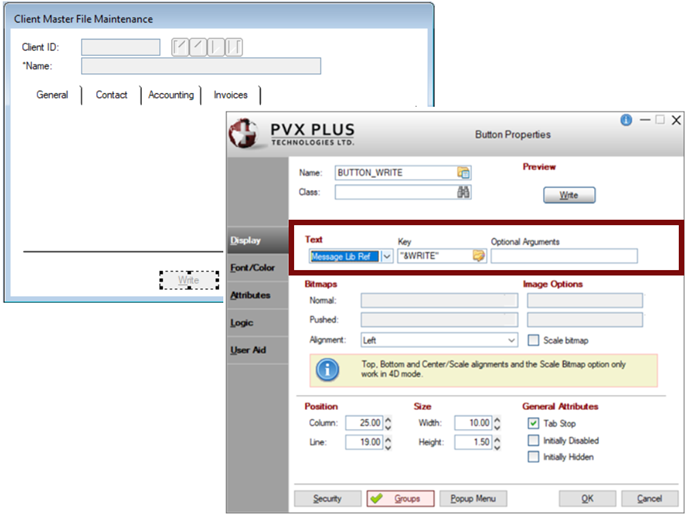
The NOMADS Message Library Maintenance is used to set up message libraries that can be accessed by various different graphical user interface applications. Setting up a message library allows standardized messages for prompts, errors and warnings to be easily maintained as they can be updated from a common source. The PxPlus File Maintenance Generator and Query Subsystem use the message library *msglib.en to maintain prompts and button messages, as well as all warning and error messages.
Example:
In this example, a message Key was entered when defining the Text property for the Button control. This Key is used to retrieve the message text from the message library when the panel is processed. See Message Library Reference.
When the panel is processed, *winproc passes the specified Key ("&WRITE") via the MSG( ) function to retrieve the message text. The equivalent process in PxPlus would be as follows:
MESSAGE_LIB "*msglib.en"
print msg("&WRITE")
Message libraries are also useful in supporting multilingual environments. See Multilingual Capabilities.
For information on the use of message libraries in PxPlus, see MESSAGE_LIB directive.
Message Library Maintenance
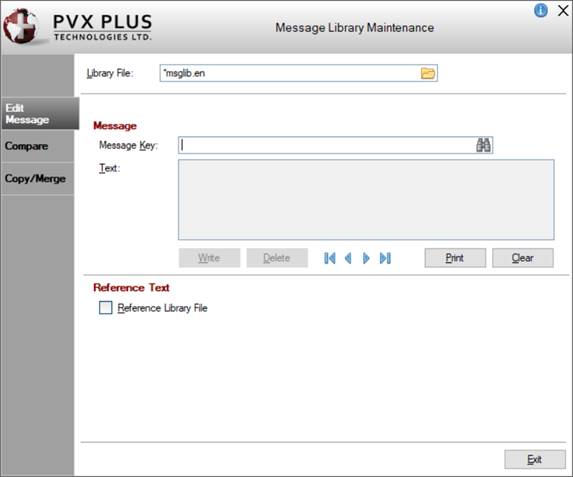
Message Library Maintenance is used to add new messages to a message library in NOMADS, as well as update or delete existing messages.
It is invoked by using one of the following methods:
Enter the name of the message library to be updated or click the Query button to select a different file. (Default is *msglib.en.)
This field can also be used to create a new application-specific message library, in which case a prompt to create the new file will display.
Edit Message
Message
Message Key
Key that identifies the message to be added, updated or deleted. Use a string, up to 64 characters in length. Click the Query button (binoculars) for a list of existing messages in the current Library File.
Use the Message Key with the MSG( ) function to return values for use in your applications. You can pass optional arguments (comma-separated strings) for messages that have placeholders for arguments.
Text (Translation)
Can be either Text or Translation based on the following:
Text
Available when a Message Key is entered and the Reference Library File check box is not selected.
Translation
Available when the Reference Library File check box is selected.
Enter message text (for either Text or Translation). This can contain placeholders for arguments to be passed in the messaging system. The format of the argument placeholder is %n where n is the argument sequence number, beginning at %1 (one).
Use the Browse buttons to scroll through the message records of the selected message library.
Write
Button used to update/add the current message to the selected message library file.
Delete
Button used to remove the current message from the selected message library file.
Print
Button used to print a list of the messages in the selected message library file.
Clear
Button used to clear the message input fields. If unsaved changes are detected, a message will display to save the changes.
Reference Text
Reference Library File
Select this check box to display a reference file when translating. Enter the pathname of the message file in the adjacent field or click the Query button to select a file. The corresponding record will be displayed as Reference Text to aid the translation process.
Reference Text
(Available only when Reference Library File check box is selected)
If you enter a Message Key or use the Browse buttons to scroll through a message library file, the corresponding record (if any) is displayed. When browsing, if records exist in the Reference File but not in the Library you are updating, these records are also displayed.
Compare
Compare
Source
Indicates the name of the source message library to be compared. Default is the current selection. Click the Query button to locate a different file.
Compare
Indicates the path and file name of the message library to be compared against the source file. Click the Query button to locate a different file.
Compare
Button used to compare the two files. Once compared, any differences are presented in the text box provided.
Print
Button used to print a hard copy of the Compare results.
Copy/Merge
Copy/Merge
Copy To
Indicates the name of the file to which records are to be copied.
Copy From
Indicates the path and name of the file from which records are copied.
Copy Option
Click the drop-down arrow for selections:
Merge Files
Copies just the records that are missing. Existing records are not overwritten.
Overwrite (No Purge)
Copies all records. Duplicate records are overwritten; however, records that are unique to the receiving file are left alone.
Purge File and Copy
NOMADS will clear the receiving file and select all records. The result is a duplicate of the file that was copied.
Copy
Button used to perform the Copy process based on the selected option.
Exit
Closes Message Library Maintenance without saving changes.