Moving PxPlus License to New System
Follow the steps below to move your registered PxPlus license to a new machine when necessary. These steps require an internet connection, as the process needs to contact the PVX Plus Technologies server. If you do not have an internet connection, you must complete the Manual Activation process.
Before you begin, ensure that you have the Serial Number and Activation Key for your license so you can install it on the new system.
1. | Find Your System Information Before contacting PVX Plus Support, find your System ID, Class, Serial Number and User Count for the system on which PxPlus is installed. To do this, use one of the following methods (depending on the operating system):
| ||||
2. | Submit a Helpdesk Ticket Submit a Helpdesk ticket to PVX Plus Support at https://helpdesk.pvxplus.com. Select the Open a New Ticket button or menu bar option. Enter your support request and include the following:
After receiving and verifying the request, PVX Plus Technologies validates and initiates the process on their key registration system and contacts you when you may proceed with the transfer. | ||||
3. | Run Online Registration On the system you are de-installing PxPlus, run the Online Registration (when connected to the internet). If the system is not connected to the internet or if you are unable to complete the online registration, you must complete the Manual Activation process. An administrative fee may apply for licenses not enrolled in the Continuous Care Program (CCP) and for unsupported versions. | ||||
4. | Note the Expiry Date After running the online registration, you should see a message similar to the one below. Make a note of the expiry date, as the software on the current system will terminate on that date. 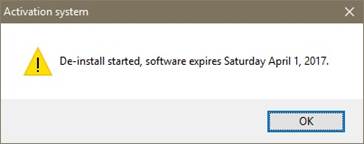 | ||||
5. | Install PxPlus on the New System Install PxPlus on the new system and enter the Activation Key. For Windows, see Download and Installation (Windows). For UNIX/Linux, see Download and Installation (UNIX/Linux). | ||||
6. | Launch PxPlus on the New System On the new system, launch PxPlus. You should see a message similar to the one below. Select Yes. 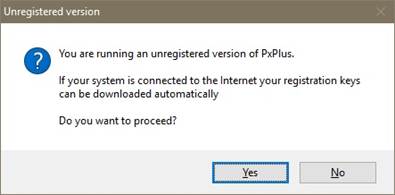 | ||||
7. | Confirm Permanent Registration on the New System You should see another message similar to the one below asking you to confirm that you want to register the software. Select Yes. 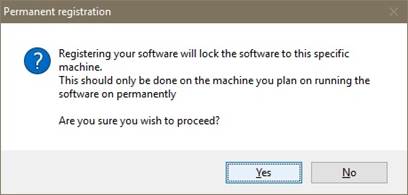 | ||||
8. | Receive Confirmation Another message displays to confirm that the transfer of the PxPlus registration is complete. 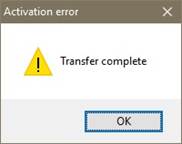 |