Webster+ System Logon
Once Webster+ Security is enabled and the Administrative User details are saved, the System Logon page displays. The system administrator can then enter his/her user name/email and password to log in, specify security and configuration settings, and define other users.
Other users who are defined and allowed access to the system must click the Logon option on the left side and enter their user name/email and password on the System Logon page.
If Two-Step Verification is set up, users must also enter a randomly generated six-digit security code received by email or SMS text message, or obtained from an authenticator app, to confirm their identity. See Login Process with Two-Step Verification for an outline of the key steps to log in.
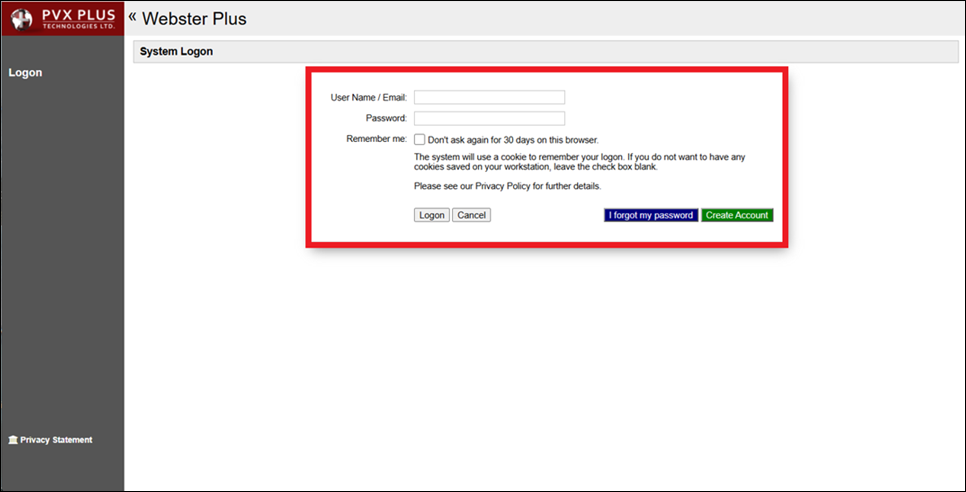
This window consists of the following:
User Name/Email | A unique user name or valid email address used to identify the user when logging on. | ||||||||||||||||||||||||
Password | Password used to log on. Must match the user's password in User Maintenance. | ||||||||||||||||||||||||
Remember me | Select the Don't ask again for 30 days on this browser check box to remain verified on this browser for 30 days; otherwise, leave the check box blank. | ||||||||||||||||||||||||
Logon | Logs the user in when the entered credentials are valid. | ||||||||||||||||||||||||
Cancel | Exits the System Logon page and displays the Default Landing Page. | ||||||||||||||||||||||||
I forgot my password | Clicking this button opens the Account password recovery window for entering a valid email address associated with an existing account. Password recovery instructions are sent to this email address. 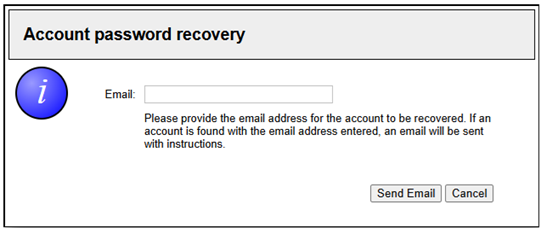 This window consists of the following:
| ||||||||||||||||||||||||
Create Account | Clicking this button opens the Register New user page for creating a user account. 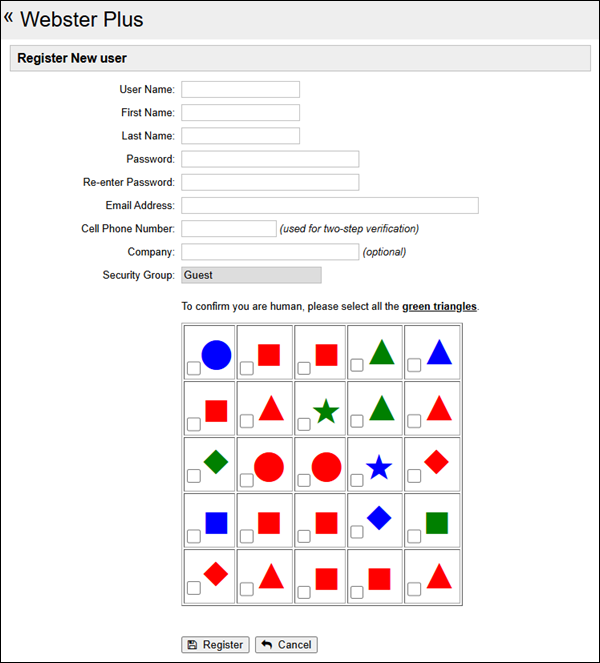 This window consists of the following:
|
Login Process with Two-Step Verification
Webster+ provides the option to set up Two-Step Verification to enhance system security. If Two-Step Verification is set up, users logging into the system must verify their identity by entering a six-digit security code received by email or SMS text message, or obtained from an authenticator app.
(The ability to integrate to a third-party authenticator app was added in PxPlus 2026 Update 1.)
The primary purpose of Two-Step Verification is to help ensure user identity by requiring both something the user knows (user ID and password) and something the user has access to (email account, device for text messages, or an authenticator app).
This table outlines the key steps for logging in using Two-Step Verification:
1. | Enter Credentials On the System Logon page, the user enters the User Name or Email address and Password as defined in User Maintenance. 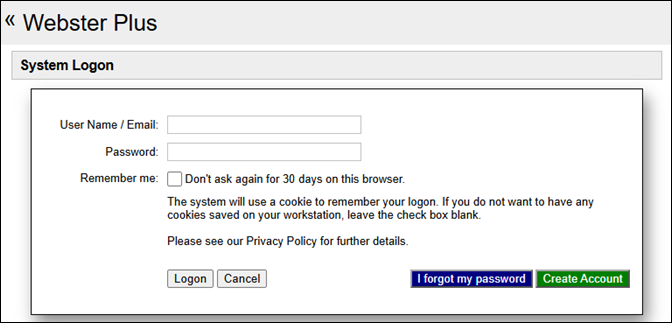 |
2. | Select Two-Step Verification Method (if applicable) The Two-Step Logon Verification page displays the verification method(s) that are available based on the information provided for the user in User Maintenance. For example, if an email address and cell phone number have been provided for the user, this page displays options to send the verification code by email or SMS text message. If an authenticator app has also been set up, that option displays as well. If only an email address has been provided, only the email verification method is displayed. The user selects the method to use for verification. Example - Two Verification Methods Available: 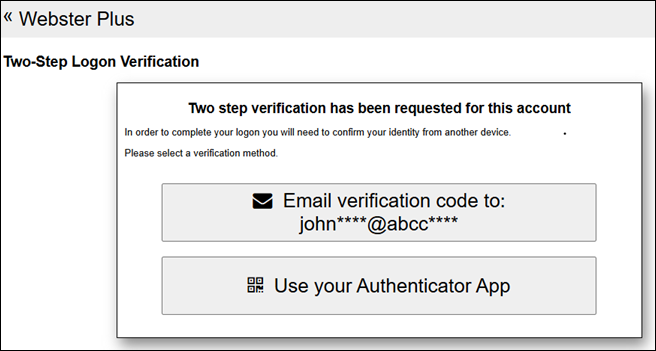 |
3. | Receive or Obtain Verification Code The user receives a randomly generated six-digit verification code by email or SMS text message, or obtains a six-digit code from the authenticator app. |
4. | Enter and Verify the Code The Two-Step Logon Verification window displays. The user enters the six-digit verification code and selects Verify. Example 1 - Code Received by Email: 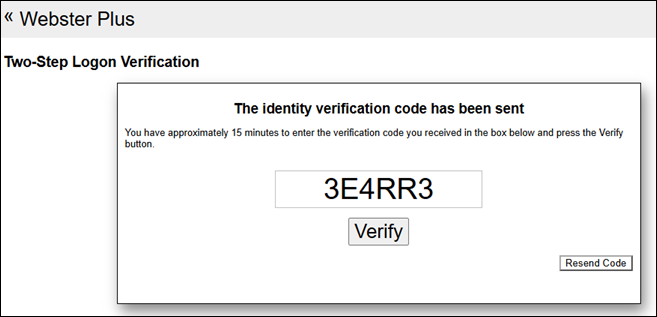 Example 2 - Code Obtained from an Authenticator App: 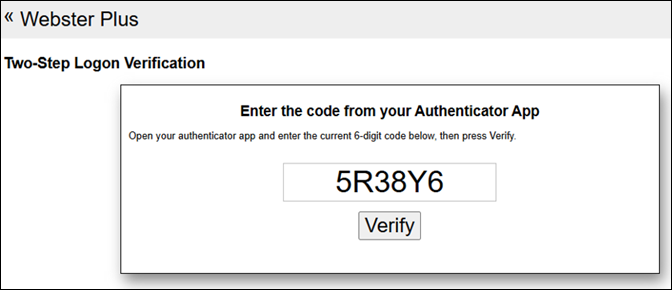 |
5. | Complete Logon If the verification code is valid, authentication is successful, and the user is granted access. If the verification code is invalid or expired, the user must enter a valid code. For email or SMS text message verification, request a new code by selecting Resend Code. For authenticator app verification, obtain a new code from the authenticator app. |
Default Landing Page
The Default Landing Page displays when the user successfully logs in to Webster+.
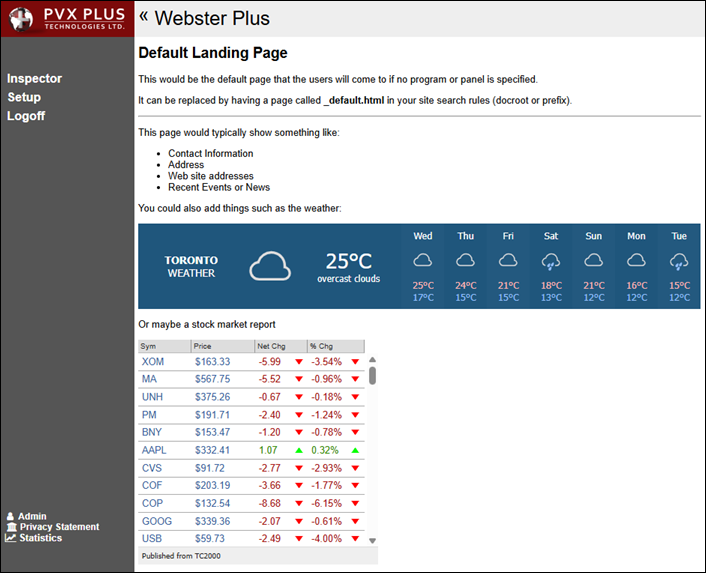
The left sidebar displays the following options:
Inspector | (Shown when security in Webster+ is enabled) Clicking this option displays the Webster+ Inspector page if the user is allowed access. This page shows the contents of the directory containing the Webster+ installation. |
Setup | Displays the System Configuration page with toolbar options for selecting various Webster+ configuration utilities. |
Logoff | Logs the current user out of Webster+ and displays the Default Landing Page. |
(User Name) | Displays the user name of the current user logged into Webster+. If the current user belongs to the System Administrators group, clicking this option displays the User Maintenance page with this user's account details. If the current user does not belong to this group, clicking this option displays the Account Maintenance page below for maintaining the user's account details. 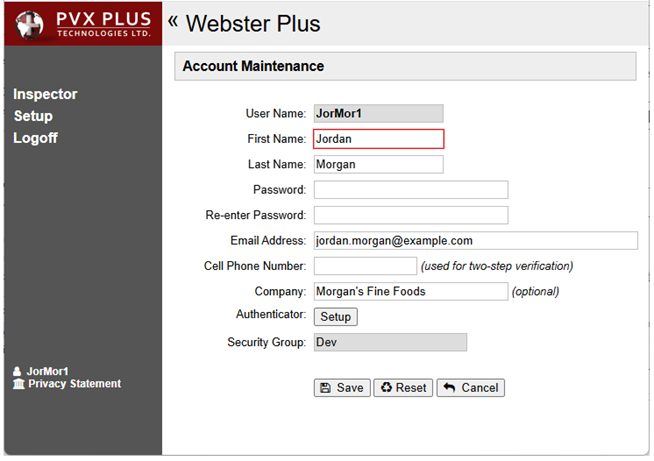 |
Privacy Policy | Displays the Privacy Policy page for the company based on the settings entered on the Site Info page. |
Statistics | Displays the Webster+ Statistics page. This option is available only for users who belong to the System Administrators group. |