When the security system in Webster+ is enabled, you will need to define the users who are allowed access to the system.
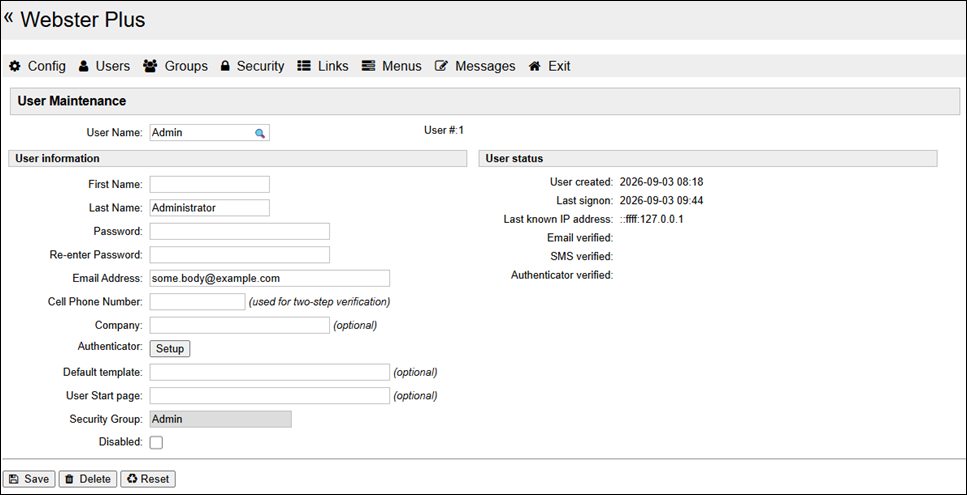
To run the User Maintenance utility, select Users from the top menu of the Webster+ system setup. The following window is displayed:
The maintenance program begins by displaying your user information. If you are part of the Admin group, the system will allow you to enter/edit other users; otherwise, you can only edit your own user information.
This window consists of the following:
User Name
A unique name used to identify a user and allow access to the system.
If this user name is known, the system will fill in the fields with the current user information; otherwise, all the user information fields will be cleared.
User #
(Display Only) Internal user number assigned to the user.
User information
Additional user information:
First Name
User's first name.
Last Name
User's last name.
Password
Password used to log on.
Re-enter Password
Re-enter the password to confirm it is correct.
Email Address
(Required) User's valid email address. The email address must be unique in the system, as it can also be used to log on.
Cell Phone Number
(Optional) Cell phone number used to send SMS messages.
Company
(Optional) Company name.
Authenticator
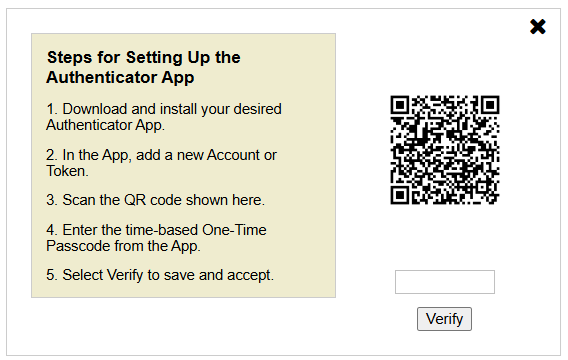
(Optional) Clicking Setup opens the Authenticator App Setup window for setting up and linking the authenticator app to Webster+ for Two-Step Verification.
This window consists of the following:
(QR Code)
QR code that the user scans using the authenticator app.
(Passcode input field)
Input field for entering the six-digit passcode generated by the authenticator app.
Verify
Checks the passcode and confirms whether the authenticator app can be linked with the system and enabled as a Two-Step Verification method.
After the authenticator app is verified, "Verified" is displayed in blue, and the Disable button appears, allowing the user to remove the app as an authentication method.
(The ability to integrate to a third-party authenticator app was added in PxPlus 2026 Update 1.)
Default template
(Optional) If provided, this will override the group and system default Template settings for this user.
(The Default template option was added in PxPlus 2023 Update 1.)
User Start page
(Optional) If provided, this will override the group and system default Starting Page for this user.
(The Default template option was added in PxPlus 2023 Update 1.)
Security Group
Security group assigned to the user.
Disabled
Check box used to block user access to the system. The user record is not deleted.
User status
(Display Only)
User created
Date and time when user was created.
Last signon
Date and time when user last signed on to the system.
Last known IP address
IP address used to connect to the system.
Email verified
Date and time when user confirmed email address.
SMS verified
Date and time when user confirmed SMS.
Pending two-step code
Displays code sent to user for Two-Step Verification until user successfully logs on.
Invalid code attempts
Displays number of times user has entered an invalid code in an attempt to gain access.
Save
Click this button to record the information for the user. The system will validate the information provided, including confirming that both passwords match.
Delete
Click this button to delete the user.
Reset
Reverts back to the previously saved information for the user.