EZ Load Multi-Line
An EZ Load Multi-Line is a Multi-Line that self-loads based on the value of another control or variable associated with its panel. When the value of the other control changes, the EZ Load Multi-Line is re-populated with the associated value. The EZ Load Multi-Line can be used as a display-only lookup field to display additional information. For example, if the meaning of a Sales Code is not obvious on its own, you can add an EZ Load Multi-Line to your panel to automatically display the description for the Sales Code. When the Sales Code is changed, the description is automatically updated -- no coding is needed.
The EZ Load Multi-Line is automatically loaded when a panel is initially drawn if the control or variable that it is associated with is populated. The associated control or variable is referred to as the trigger. Whenever the value of the trigger control changes, the EZ Load Multi-Line is automatically updated.
To accomplish this, you only need to define the parameters required for an EZ Load Multi-Line:
Lookup File to be read and Key information to read the required record
Trigger Variable(s) and Control(s) that will initiate the reload when changed
See Defining an EZ Load Multi-Line.
(EZ Load Multi-Line was added in PxPlus 2018.)
Defining an EZ Load Multi-Line
The EZ Load Multi-Line Definition window is used to turn on the EZ Load logic for the target Multi-Line and supply the file and key information required to retrieve the information to be displayed. It also allows you to define load-triggering criteria for the control.
To create an EZ Load Multi-Line Definition:
1. | In the NOMADS Panel Designer, access the Properties window for the target Multi-Line. | |
2. | Select the Attributes tab (using the Folder Style version of the NOMADS designer). | |
3. | Click the EZ Load button to bring up the EZ Load Multi-Line Definition window. |
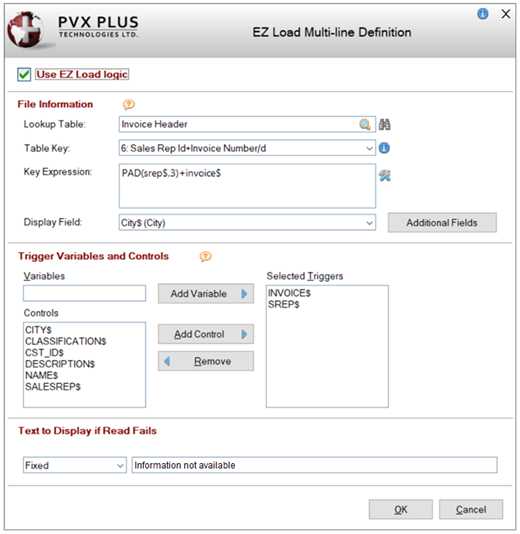
This
window consists of the following:
Use EZ Load logic | Select this check box to enable EZ Load logic for the Multi-Line. | ||||||||||
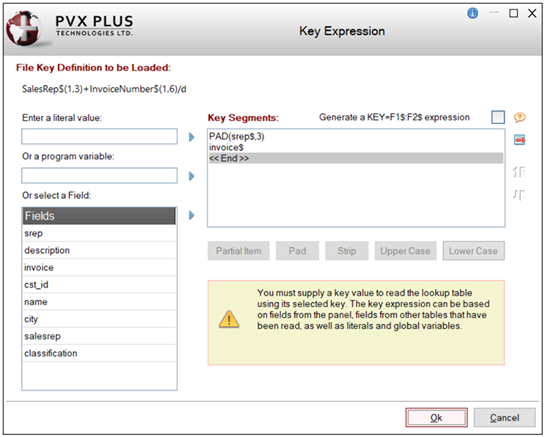
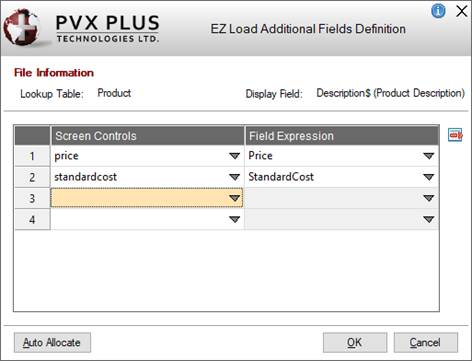
File Information | (Available when Use EZ Load logic check box is selected) Identify the information about the file to be read to look up the targeted data to be displayed in the Multi-Line:
| ||||||||||
Trigger Variables and Controls | Trigger variables initiate the load logic. Any change in the value of a trigger variable will cause the EZ Load Multi-Line to be reloaded after the trigger control's On Change logic has been executed. (EZ Load-enabled controls are also loaded whenever a panel is drawn if the trigger variable has been populated.)
| ||||||||||
Text to Display if Read Fails | Text to load into the Multi-Line when the load logic fails to retrieve data. Can be a Fixed value, string Expression or Message Library entry (see Message Library Maintenance). If left blank, the default message Not on File (i.e. MSG("NOTONFILE")) will be displayed. |