Adding a Folder
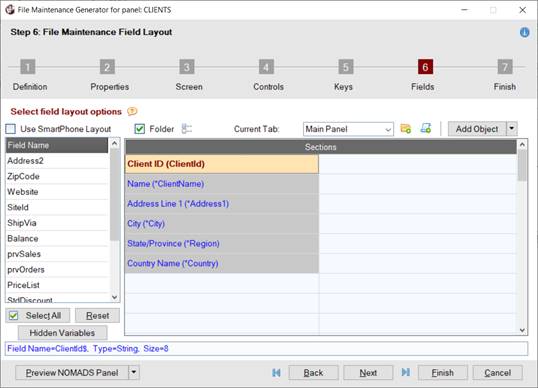
A Folder control can be added to any row on the Main panel, except on a row containing a Key field. If no Folder Location is specified, the Folder control will be added to the bottom of the Main panel.
To add a Folder control:
1. | Select the Folder check box. |
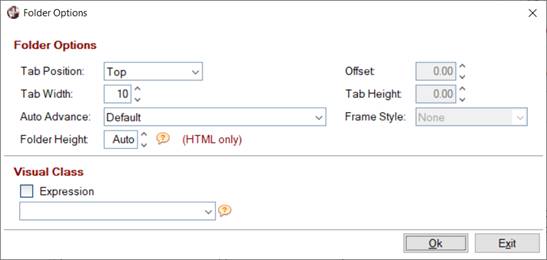
2. | Click the Folder Options button (beside the Folder check box) to specify the Folder properties (folder height, tab placement, tab width/height, etc.). |
3. | Click the Maintain Folder Tabs button to add the Folder tabs. |
4. | To specify the Folder location on the Main panel, right click on a row and select the Folder Location option from the popup menu. The row displays the text * Folder Location *, and the row size changes to a Full section if it was not a Full section before (i.e. Half, Third, Quarter or Flex). If the row contains data dictionary fields, the field(s) will be returned to the Fields list box. If the row contains object controls, a message will display prior to removing the object(s). |
|
|
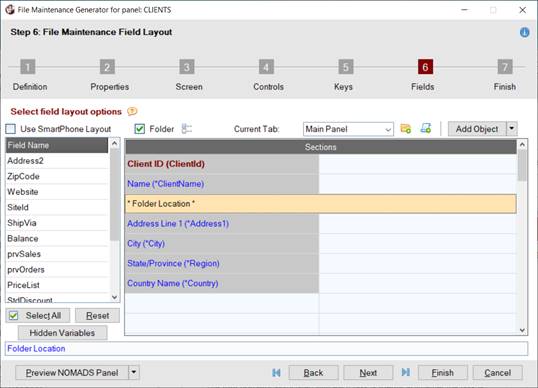
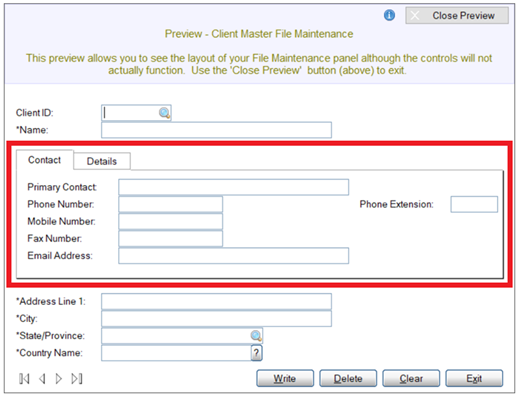
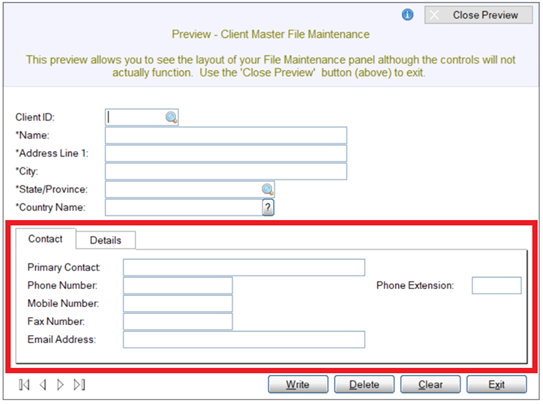
If no Folder Location is specified, the Folder control will be added to the bottom of the Main panel:
|
|
This table describes the options that are used to add a Folder control:
Folder | Select this check box to set up Folder sub-panels. For information about folders in NOMADS panels, see NOMADS Folder Controls. For information about folders in Webster+ HTML pages, see Webster+ Folders/Tabs. | ||||||||||
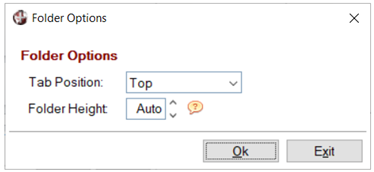
(Folder Options) | (Available when Folder check box is selected) Button (beside the Folder check box) that launches the Folder Options window for specifying Folder properties. When only HTML Page is selected as the Form Type in Step 1: Definition, the options that are not applicable are not displayed, as shown in the second screen shot:
This window consists of the following:
| ||||||||||
Panel (or Current Tab) | Indicates the current panel being defined (i.e. Main panel or a Folder tab). When the Folder check box is selected, the fonted text changes from Panel to Current Tab, and the Maintain Folder Tabs button next to the drop box is enabled. New tabs can be added either by typing the new tab name in the drop box and then pressing Enter or by clicking the Maintain Folder Tabs button. Use the Current Tab drop box to view a list of the tabs created (if applicable) and to select the tab or Main panel for which the field layout will be defined. | ||||||||||
(Maintain Folder Tabs) | (Available when Folder check box is selected) Button (next to the Current Tab drop box) that launches the File Maintenance Panel Tabs window. This window is used to add, delete or rename folder tabs on the file maintenance panel. 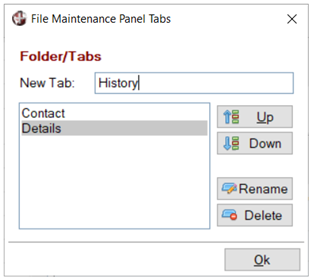 This window consists of the following:
(The Rename button was added in PxPlus 2021.) |