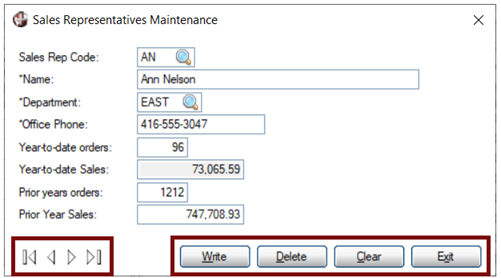
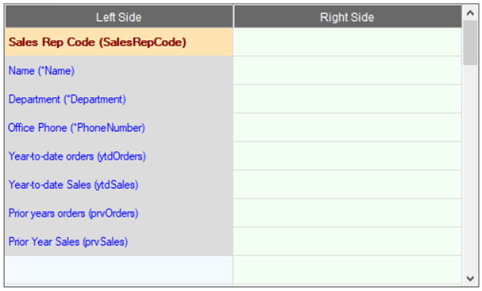
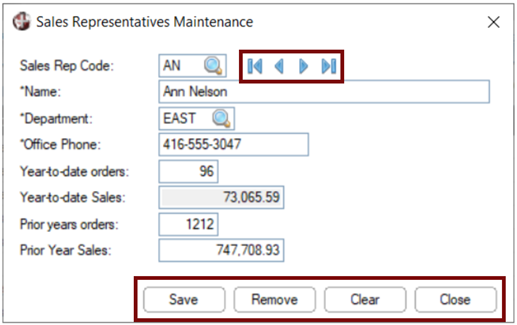
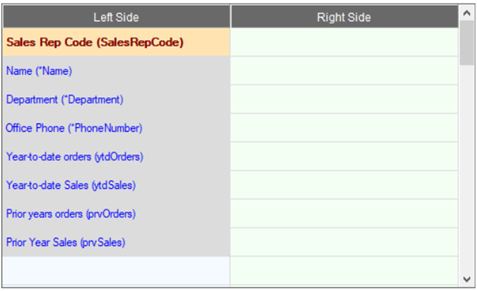
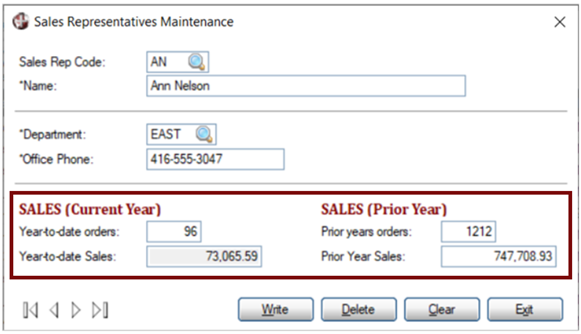
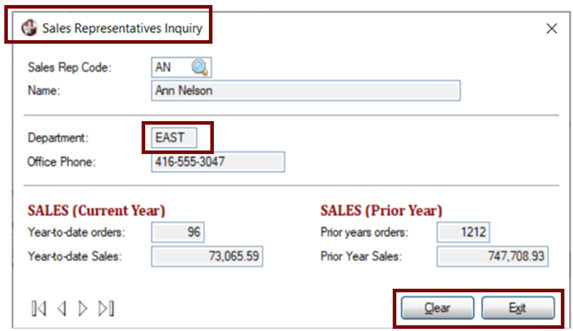
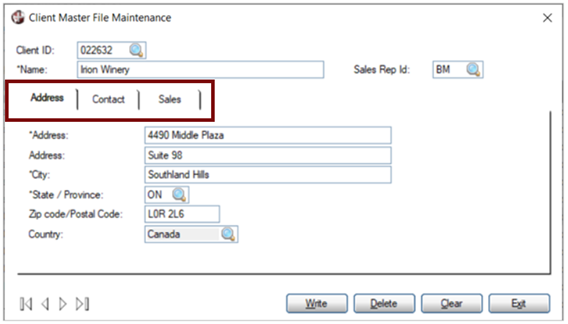
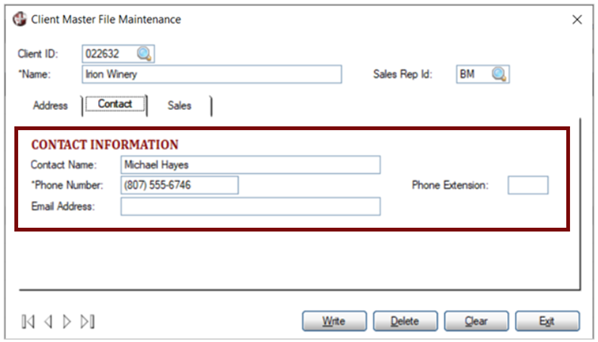
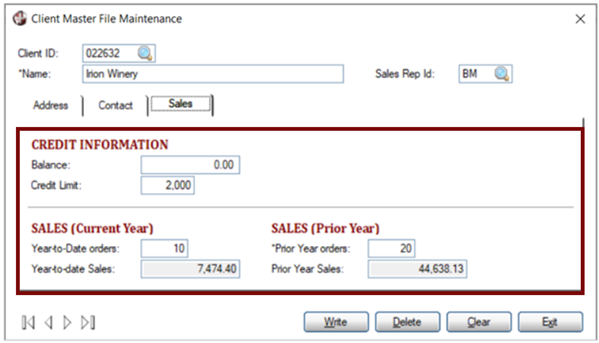
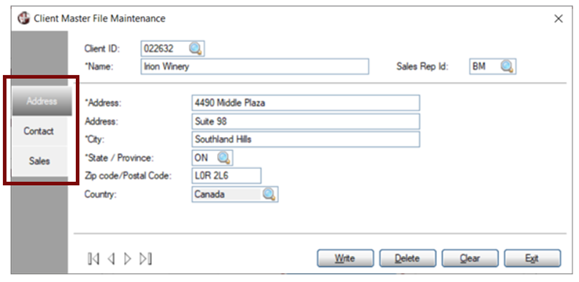
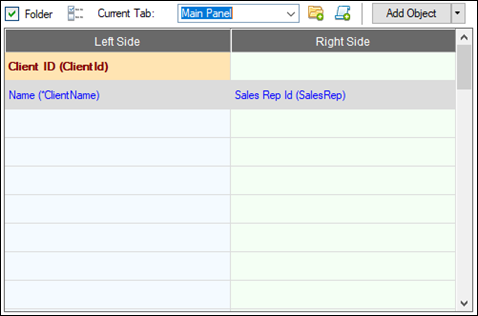
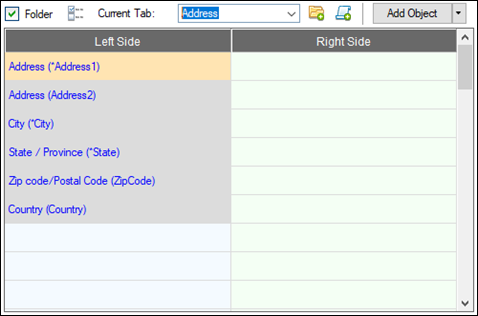
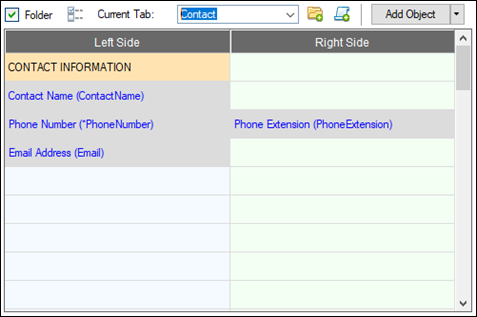
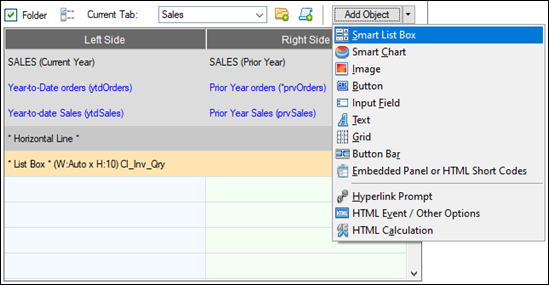
The sample panels below were generated using the Two-Column Layout in the File Maintenance Generator; however, most settings will also apply to the Enhanced Layout.
Beside each sample panel are the settings that generated these results. By adjusting these settings, the appearance of a generated panel can be easily modified.
Use these links to jump to a sample panel on this page:
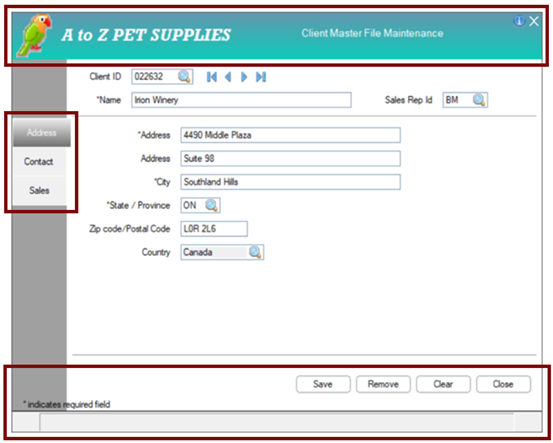
Title Bar added Multi-Tabbed Panels (Left Sidebar Tabs) Browse buttons - Embedded Panel (Right of Key) Action buttons - Embedded Panel (Bottom Right) Status Bar added Right Prompt Alignment (no colon) Required Fields with preceding * and explanation text Vertical Spacing adjusted Fonted Text added Horizontal Lines added Smart List Box added
Sample Panel 1
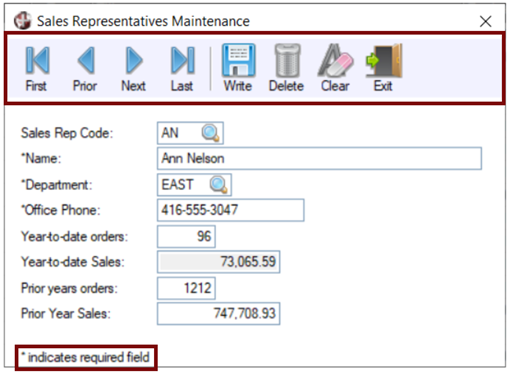
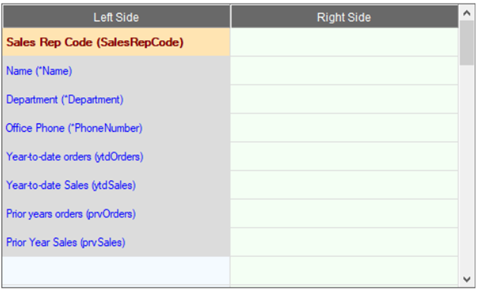
Standard Browse buttons (Bottom Left) Standard Action buttons (Bottom Right)
Location of browse buttons: Embedded Panel Specify Library/Panel and set Position:to Right of Key Location of action buttons: Embedded Panel Specify Library/Panel and set Position: Bottom Right
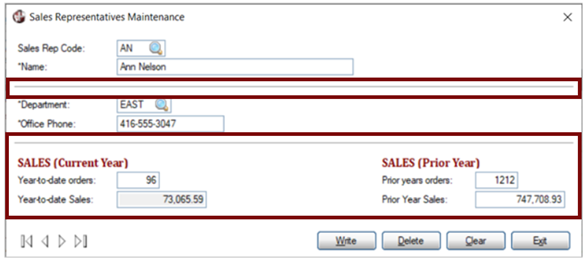
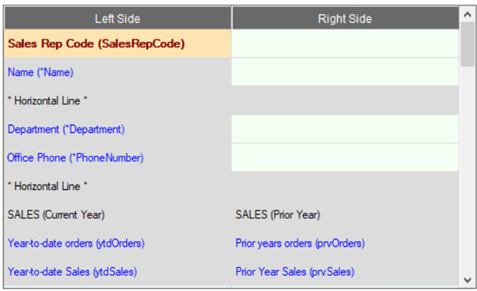
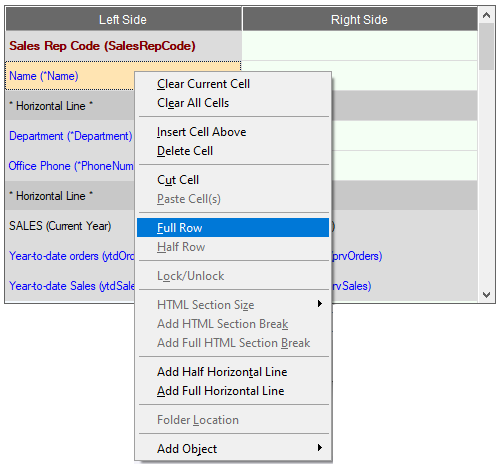
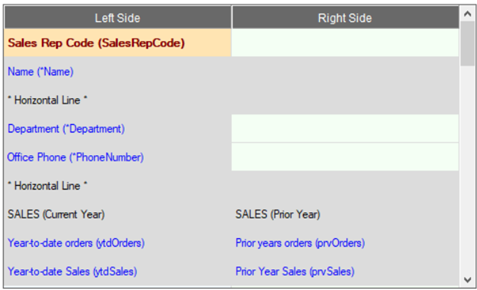
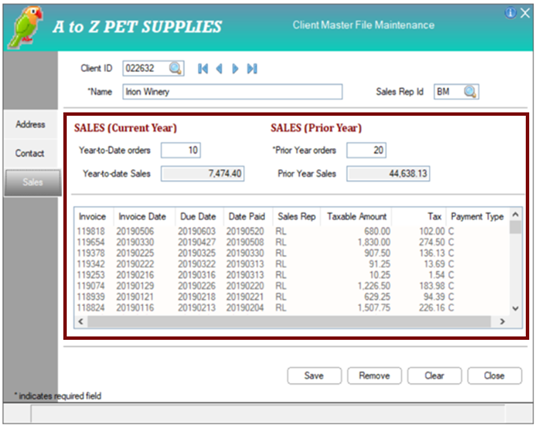
To reduce the gap between the two SALES columns, change the Name row from "Half Row" to "Full Row". This allows the Name field to extend across both columns rather than widen only the left side column.
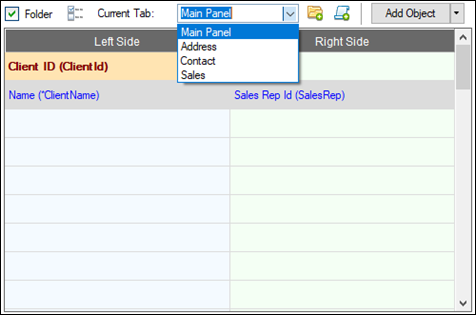
Select Folder Options button: In Folder Options window, set Tab Position to Left Sidebar
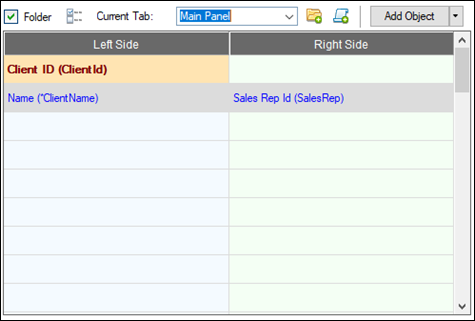
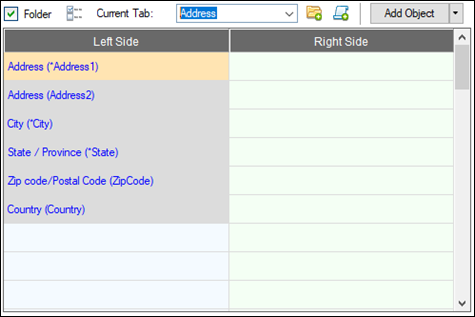
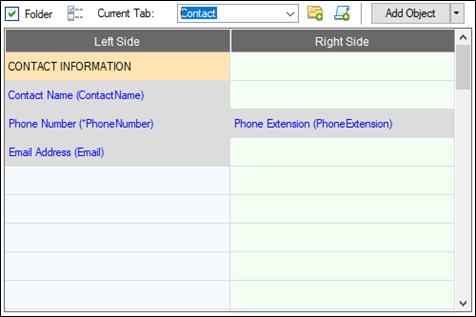
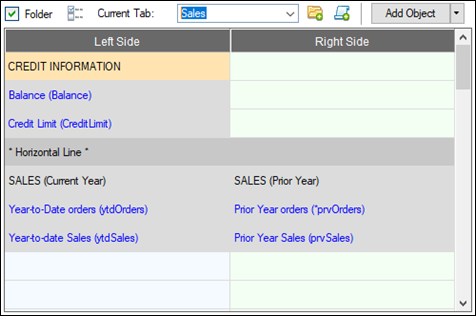
Folder/Tabs (in addition to Main Panel): Define new tabs for Address, Contact, Sales
Sample Panel 8
Combination of settings:
Title Bar added Multi-Tabbed Panels (Left Sidebar Tabs) Browse buttons - Embedded Panel (Right of Key) Action buttons - Embedded Panel (Bottom Right) Status Bar added Right Prompt Alignment (no colon) Required Fields with preceding * and explanation text Vertical Spacing adjusted Fonted Text added Horizontal Line added Smart List Box added
Select Screen Options button: In Screen Options window, set TitleBar Option to TitleBar. Specify Library/Panel to use. Set Status Bar check box to On.
Location of browse buttons: Embedded Panel Specify Library/Panel and set Position:to Right of Key Location of action buttons: Embedded Panel Specify Library/Panel and set Position: Bottom Right
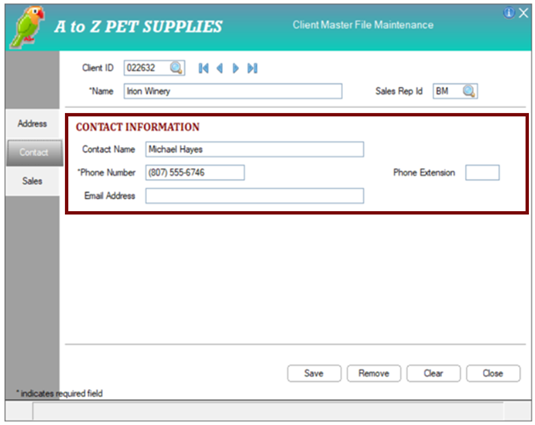
Prompt Alignment: Right Set Append Colon on Prompt check box to Off Required Fields: Indicate with preceding * and include explanation text Vertical Spacing: 1.00 Visual Class: Select Visual Class from drop box
Visual Class definition for Fonted Text: - Foreground Color = Dark Red - Font = Cambria, Bold = On, Size = 14 points