Library Compare Utility
The Library Compare utility allows you to compare panels from the same library or from two different libraries.
To invoke this utility, use one of the following methods:
Location | Method |
|---|---|
From the PxPlus IDE Main Launcher | Expand the Graphical Application Builder (NOMADS) category. Then expand the Utilities category and select Compare. |
Select the Compare tool bar button or select Utilities > Compare from the menu bar. | |
From the NOMADS Session Manager | Select Library > Compare from the menu bar. |
The following window is displayed:
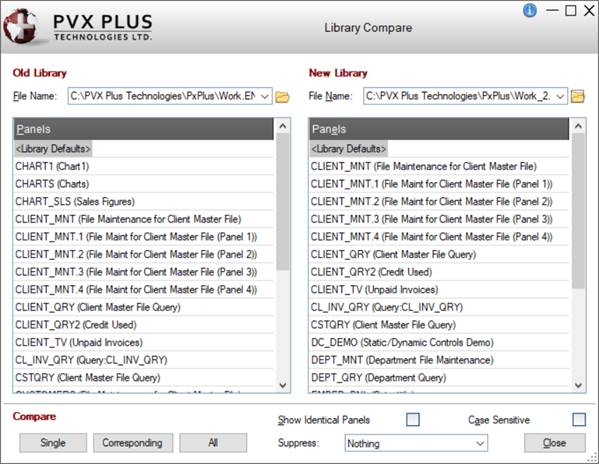
This window consists of the following:
File Name | Displays the selected library name for comparison. Click the drop-down arrow for a list (up to nine) of previous selections. Click the Query button to specify a file name. | ||||||
Panels | Displays a lookup list (name and expanded description) of the available panels in the selected library. You can highlight and select panels individually for comparison. | ||||||
Show Identical Panels | Check box to indicate that a confirmation message is to be issued when compared panels are identical. | ||||||
Case Sensitive | Check box to indicate that the compare should detect differences in text casing. Default behavior is a case insensitive compare. (The Case Sensitive check box was added in PxPlus 2020.) | ||||||
Suppress | Provides selections for excluding or not excluding control position coordinates and/or tab stops from the comparison. Available selections are Nothing, Position, Tab Stop, Both Position & Tab Stop. (Default is Nothing.) (The Suppress drop box was added in PxPlus 2018.) | ||||||
Compare |
| ||||||
Close | Exits the Library Compare utility. |
Once panels have been compared, NOMADS displays a Compare List on the screen. It shows any differences and unique elements found in the comparison. This report can be printed to hard copy, if required.