Merge Panels Utility
The Merge Panels utility provides the capability to merge the contents of one library into another.
To invoke this utility, use one of the following methods:
Location | Method |
|---|---|
Select Library > Merge from the menu bar, and when prompted, specify the pathname of the library file to be merged from (Input Library). | |
Select the Merge button on the tool bar or select Utilities > Merge from the menu bar. |
The following window is displayed:
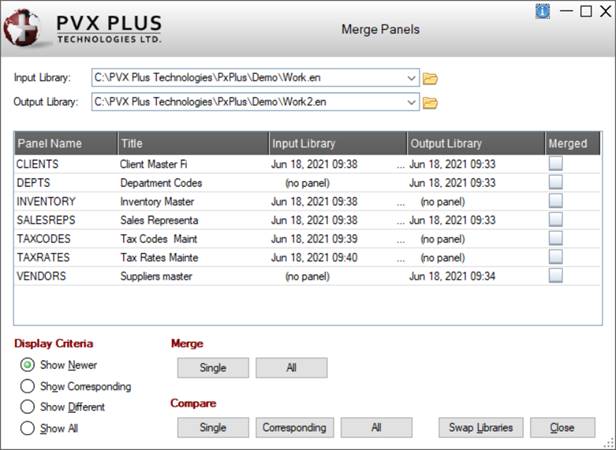
This window consists of the following:
Input Library | Indicates the name of the library file to be merged from. Default is the current selection. Click the Query button to specify a different library file. Click the drop-down arrow for a list (up to nine) of previous selections. | ||||||||
Output Library | Indicates the name of the library file to be merged into. Click the Query button to specify a library file. Click the drop-down arrow for a list (up to nine) of previous selections. | ||||||||
(Panels List Box) | Displays the name, title and date information of the panels in the selected libraries. The Merged check box is selected automatically after a panel is successfully merged into the Output Library. | ||||||||
Display Criteria |
| ||||||||
Merge |
| ||||||||
Compare |
| ||||||||
Swap Libraries | Button that is used to switch Input Library to Output Library and vice-versa. | ||||||||
Close | Exits the Merge Panels utility. | ||||||||