Panel Header
By default, Panel Header properties are loaded when the Panel Designer is first launched. These are the overall properties used to define the panel itself, rather than the specific controls within the panel. Some changes to panel header properties (e.g. font and background/foreground colors) are automatically applied to all the controls within the panel. To reverse any changes you make, click the Undo button on the toolbar or select Edit > Undo from the menu bar.
The NOMADS Custom Title Bar feature allows you to design your own title bar to customize the look and feel of your application. A TitleBar Option is available on the TitleBar tab in the Panel Header and in Library Defaults. In addition, a custom title bar can be applied system wide by defining the %NOMADS'TitleBar$ property. See Assigning Custom Title Bars.
(The Custom Title Bar feature was added in PxPlus 2017.)
The Library Bulk Edit and Search Utility makes it easy to apply changes simultaneously to controls in multiple panels either in a single library or in multiple libraries within a specified directory. This utility provides a convenient way to standardize the appearance of panel headers and panel controls over an entire library.
(The Library Bulk Edit Utility was added in PxPlus 2017 and renamed to Library Bulk Edit and Search in PxPlus 2023 Update 1.)
The Wiki Help option on the User Aids tab allows Help documentation to be generated directly from a panel and displayed in the PxPlus Wiki. See NOMADS Wiki Help.
(The Wiki option for NOMADS panels was added in PxPlus 2023.)
Panel Definition
The panel itself can be selected for editing from the Panel Designer by clicking the Header option on the toolbar or selecting Panel > Header from the menu bar. The Panel Definition dialogue (pictured below using the Folder Style version of the NOMADS Panel Designer) is displayed.
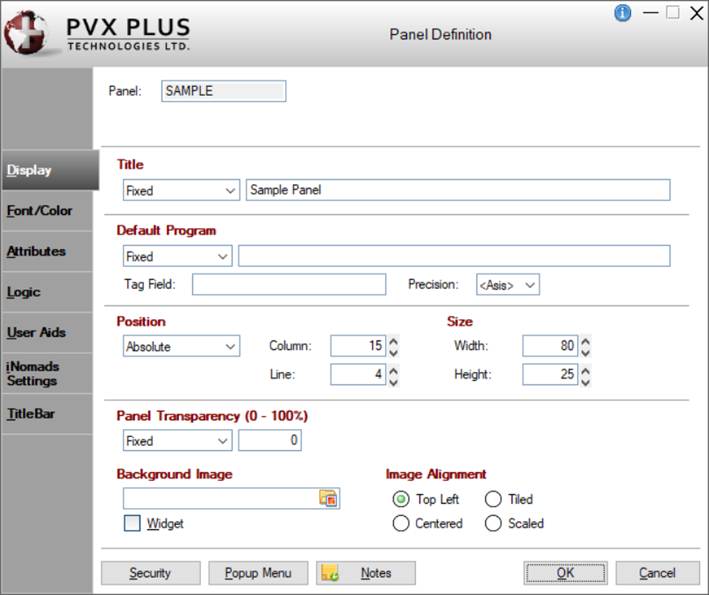
Panel Header Properties
The Panel Definition dialogue consists of the following folder tabs: Display, Font/Color, Attributes, Logic, User Aids, iNomads Settings and TitleBar.
(The TitleBar tab was added in PxPlus 2017.)
The design properties displayed on each folder panel are explained below.
Panel | Display-only field that contains the name of the panel object. | ||||||||||||||||||||||||||||||||||
Last update | Display-only information consisting of a date stamp and User ID. This information is shown when editing an existing panel. | ||||||||||||||||||||||||||||||||||
Display | |||||||||||||||||||||||||||||||||||
Title | Panel title to be displayed (Fixed value, string Expression or Message Library Reference). | ||||||||||||||||||||||||||||||||||
Default Program | Default program name to be used for panel and control events (Fixed value or string Expression).
| ||||||||||||||||||||||||||||||||||
Position | Determines where the panel is placed on the desktop. NOMADS provides the capability for the system to remember where a panel was last placed and will attempt to restore it to the same position. See Panel Persistence. Click the drop-down arrow for a list of selections: Absolute, Relative, Centered.
Specify the starting Column and Line values of the panel:
(Support for increased Column and Line maximums was added in PxPlus 2021.) | ||||||||||||||||||||||||||||||||||
Size |
(Support for increased Width and Height maximums was added in PxPlus 2021.) | ||||||||||||||||||||||||||||||||||
Panel Transparency (0 - 100%) | (NOMADS Only) Percentage transparency for the current window. A value of "0" indicates completely opaque. A value of "100" is completely transparent. | ||||||||||||||||||||||||||||||||||
Background Image | (NOMADS Only) Name of the picture (Fixed or string Expression). Click the Bitmap Library button to select a bitmap from the Bitmaps dialogue.
| ||||||||||||||||||||||||||||||||||
Image Alignment | Alignment options for the background image. Available selections are Top Left, Centered, Tiled, Scaled. | ||||||||||||||||||||||||||||||||||
Font/Color | |||||||||||||||||||||||||||||||||||
Font Specification |
| ||||||||||||||||||||||||||||||||||
Alignment | Sets the defaults for Fonted Text on the panel.
| ||||||||||||||||||||||||||||||||||
Color | (NOMADS Only)
(The Color Selections Query button and dialog were added in PxPlus 2020.) | ||||||||||||||||||||||||||||||||||
Attributes | Optional attributes for Bold, Italics, etc. | ||||||||||||||||||||||||||||||||||
Mnemonics | Sets the character-based attributes for Standard Text on the panel. | ||||||||||||||||||||||||||||||||||
Theme | Assign a Theme to be applied to the panel. The Theme can be defined as a Fixed value or string Expression. Click the Theme Maintenance button to launch the Themes Maintenance utility for creating and editing Themes. Click the drop down arrow to select an existing Theme. Theme names that begin with an "*" (asterisk) are predefined Themes used by PVX Plus and may be subject to change without notice. (Theme support was added in PxPlus 2017.) | ||||||||||||||||||||||||||||||||||
Attributes | |||||||||||||||||||||||||||||||||||
Attributes |
| ||||||||||||||||||||||||||||||||||
Parameters |
| ||||||||||||||||||||||||||||||||||
Logic | |||||||||||||||||||||||||||||||||||
Default Program | (NOMADS+ and Folder Style) Displays the name of the Default Program (from the Display tab). (The Default Program on the Logic tab was added for display in PxPlus 2019.) | ||||||||||||||||||||||||||||||||||
Pre-Display | Logic to process before the panel is drawn. Click the drop-down arrow for a list of selections. See Events Logic. Click the Program Logic button beside the Perform or Call action to launch the default program editor, which is typically the *IT - Integrated Toolkit. To make Ed+ the default program editor, change the setting for the %NOMADS'Program_Editor property to Ed+. (The ability to set Ed+ as the default program editor was added in PxPlus 2023.) | ||||||||||||||||||||||||||||||||||
Post-Display | Logic to be processed after the panel and all the controls are drawn. Click the drop-down arrow for a list of selections. See Events Logic. Click the Program Logic button beside the Perform or Call action to launch the default program editor, which is typically the *IT - Integrated Toolkit. To make Ed+ the default program editor, change the setting for the %NOMADS'Program_Editor property to Ed+. (The ability to set Ed+ as the default program editor was added in PxPlus 2023.) | ||||||||||||||||||||||||||||||||||
On Exit | Logic to be executed before the panel is closed. Click the drop-down arrow for a list of selections. See Events Logic. Click the Program Logic button beside the Perform or Call action to launch the default program editor, which is typically the *IT - Integrated Toolkit. To make Ed+ the default program editor, change the setting for the %NOMADS'Program_Editor property to Ed+. (The ability to set Ed+ as the default program editor was added in PxPlus 2023.) | ||||||||||||||||||||||||||||||||||
On Timer | Implement a timer to run while the panel is active. Select the Define button to enter a definition that consists of a timer duration (in seconds) and logic to execute when the timer event occurs. When another panel, msgbox, etc. is invoked, the timer is suspended until the original panel is active again. | ||||||||||||||||||||||||||||||||||
User Aids | |||||||||||||||||||||||||||||||||||
Help Reference |
(The Wiki option was added in PxPlus 2023.) | ||||||||||||||||||||||||||||||||||
Message Bar | Text to be displayed in the panel's status bar when focus is on the control (Fixed value, string Expression or Message Library Reference). | ||||||||||||||||||||||||||||||||||
iNomads Settings | |||||||||||||||||||||||||||||||||||
iNomads Class | The iNomads class contains class attribute references associated with the panel in the HTML code generated in iNomads. An iNomads class reference must start with an alpha character (A-Z or a-z), followed by any combination of A-Z, a-z, 0-9, underscore or dash. Multiple references may be entered, separated by a space. For a list of predefined classes, see iNomads Classes. (The iNomads Class option was added in PxPlus 2016.) | ||||||||||||||||||||||||||||||||||
iNomads Template | If specified, the iNomads template will be applied to the panel, overriding the template specified for the session. See iNomads Templates. (The iNomads Template option was added in PxPlus 2016.) | ||||||||||||||||||||||||||||||||||
TitleBar | |||||||||||||||||||||||||||||||||||
TitleBar Option | (NOMADS Only) Set the TitleBar option for the panel. See Custom Title Bars. Available selections are:
(TitleBar Option was added in PxPlus 2017.) | ||||||||||||||||||||||||||||||||||
Panel Information | (Available when TitleBar Option is TitleBar)
(Panel Information was added in PxPlus 2017.) | ||||||||||||||||||||||||||||||||||
Security | Assign security classifications and access levels for the panel header. See Restricting Access for information on Object Security Definition. | ||||||||||||||||||||||||||||||||||
Popup Menu | Associate a floating menu that will appear when right clicking the mouse over a control or a blank area on a panel. Valid formats are a NOMADS popup object or a user-supplied program (Fixed value or string Expression). See Popup Menu. | ||||||||||||||||||||||||||||||||||
Notes | Add notes/comments for the panel. Maximum 1024 characters. These notes also display in the Wiki Help documentation for the panel. See NOMADS Wiki Help. | ||||||||||||||||||||||||||||||||||
See Also
Panel Bulk Edit Utility
Library Bulk Edit and Search Utility
Custom Title Bars