Two-Factor Authentication Setup
Two-Factor Authentication (2FA) increases system security by requiring users to verify their identity using a second authentication method in addition to their user ID and password when logging in.
When Two-Factor Authentication is set up and a user is logging in, a randomly generated six-digit security code is sent to the user via email, text message or an authenticator app. The user must enter this code to complete the authentication process.
See Security Sign On and How To Tutorials for Two-Factor Authentication (2FA).
(Two-Factor Authentication Setup was added in PxPlus 2023.)
(The ability to integrate with a third-party authenticator app was added in PxPlus 2026.)
To set up Two-Factor Authentication, click the Two-Factor Authentication Setup button in User Maintenance. This button is available only to users with the ADMIN classification.
The Setup Two-Factor Authentication window is displayed (shown below with a sample entry):
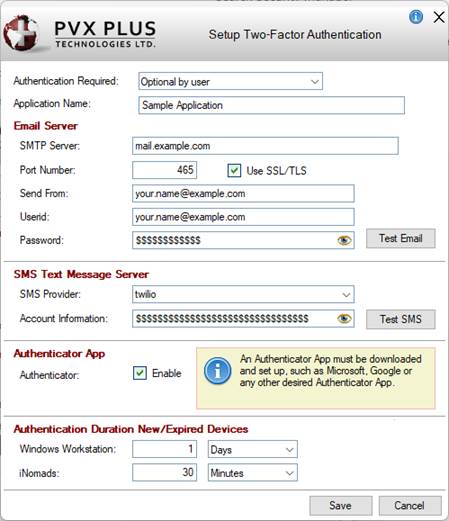
This window consists of the following:
Authentication Required | This option controls whether Two-Factor Authentication will be set up or disabled on the system. Click the drop-down arrow for a list of selections:
| ||||||||||||||
Application Name | Enter the application name that will be used in verification emails and/or text messages sent to users. | ||||||||||||||
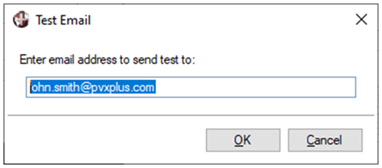
Email Server | Define the email server that will be used to validate the user:
| ||||||||||||||
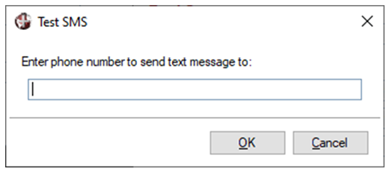
SMS Text Message Server | Define the SMS server that will be used to validate the user:
| ||||||||||||||
Authenticator App | Selecting the Enable check box enables the Authenticator App Setup button in User Maintenance. This button is used for setting up a third-party authenticator app for Two-Factor Authentication. (The ability to integrate with a third-party authenticator app was added in PxPlus 2026.) | ||||||||||||||
Authentication Duration New/Expired Devices | When a user is authenticated, the system can be set to defer future authentication requests for a period of time (Minutes, Hours or Days), depending on the device the user used. This can range from 0 minutes (forces re-authentication ever time the user logs on) to 99999 days (effectively never ask again). The period chosen can be different when the user is on a Desktop system (using NOMADS) or a Web Browser (using iNomads). | ||||||||||||||
Save | Saves the settings and closes the Setup Two-Factor Authentication window. | ||||||||||||||
Cancel | Closes the Setup Two-Factor Authentication window without saving changes. |
See Also
User Maintenance
Restricting Access
Security Sign On
How To Tutorials for Two-Factor Authentication (2FA)