How to Default to INSERT Mode in *IT Program Editor
The Default to INSERT mode option in the *IT Program Editor allows you to set the default behavior when entering text in the program editor. When this option is set, the *IT Program Editor will always default to Insert mode, rather than Overwrite mode, if the Save settings option is also selected.
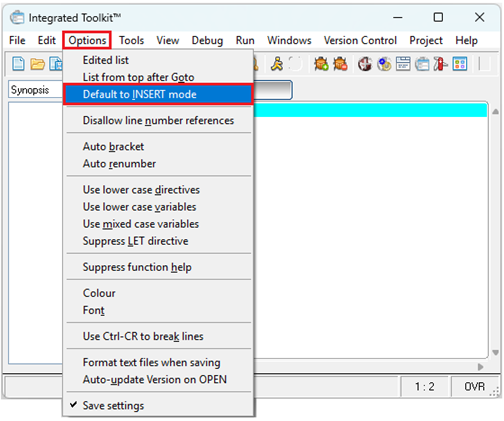
These steps show you how to set the Default to INSERT mode option.
1. | Launch the *IT Program Editor. From the PxPlus IDE Main Launcher, locate the PxPlus IDE category at the top of the tree view and select the Program Editor (*IT) task. 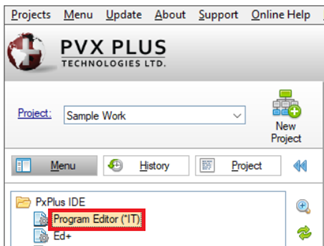 |
2. | The Integrated Toolkit™ window opens. In the top menu bar, select Options and then click the Default to INSERT mode option. 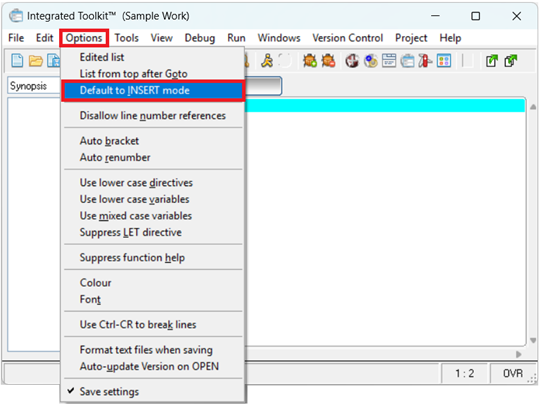 |
3. | In the bottom right corner, the message bar changes from OVR to INS. 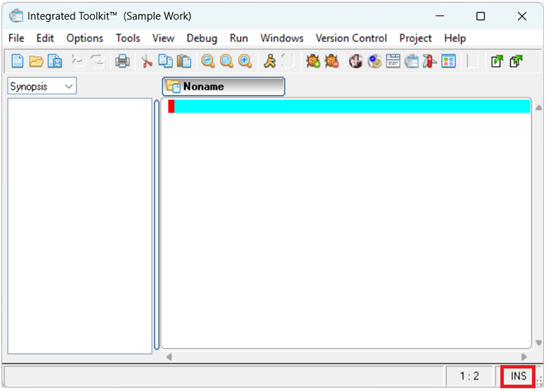 |
4. | The INSERT mode is now set. |
5. | To retain the INSERT mode setting the next time the *IT Program Editor is launched, select Save settings on the Options menu. This option is On by default. To verify, open the Options menu again. A check mark next to the Default to INSERT mode and Save settings options confirms that both are On. 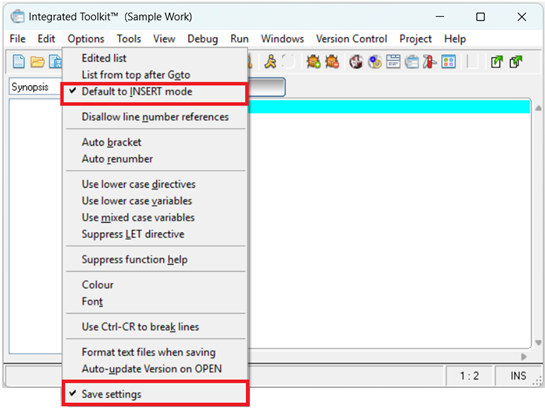 |
6. | To close the *IT Program Editor, select File > Exit from the top menu bar. |