How to Set a Toolkit Theme
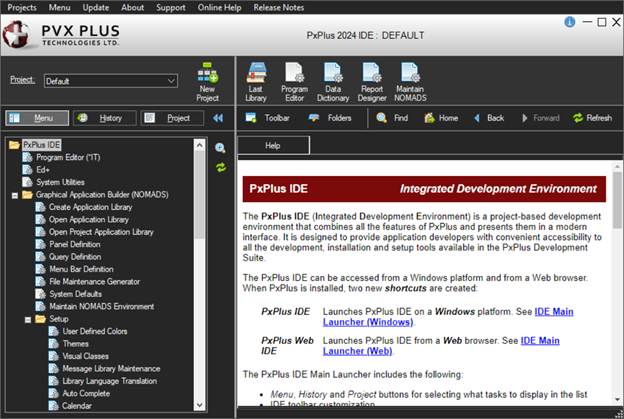
Starting with PxPlus 2024, two new modes - Dark and Light - have been created to enhance the user experience of the PxPlus Development Suite.
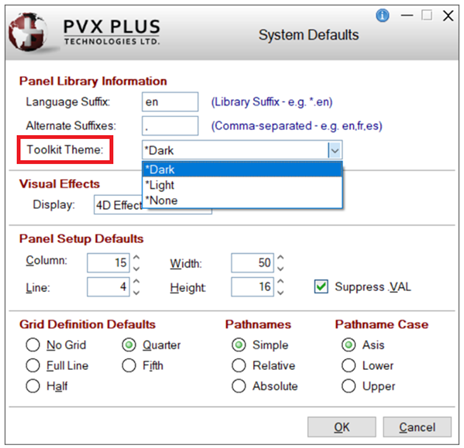
These new modes are selected from the Toolkit Theme drop box in System Defaults:
These steps show you how to set a Toolkit Theme:
1. | From the IDE Main Launcher, expand the Graphical Application Builder (NOMADS) category. | |
2. | Select System Defaults. If the file does not exist, a message will display, asking to create it. | |
3. | Select Yes to create the file or select No to return to the IDE Main Launcher. | |
4. | If Yes was selected, the System Defaults window will display. | |
5. | Select a Toolkit Theme from the drop box: | |
6. | Click OK to save. | |
7. | A message displays to prompt you to restart the PxPlus IDE to apply the selected Toolkit Theme. 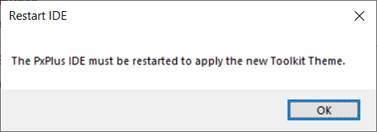 | |
8. | Close and restart the PxPlus IDE. | |
9. | The PxPlus IDE is launched in the selected Toolkit Theme.
|