How to Speed Up WindX Using Turbo Mode
At times, PxPlus programs may be slow when running over a WindX connection. One of the major contributing factors is the amount of data being sent to and from the host and workstation to render the dialog and its controls. Controls such as list boxes and grids that display large amounts of data are particularly problematic, especially over slower network connections, such as SSH.
Coding techniques such as hiding the control until it is fully loaded, setting multiple control properties using Pseudo Multi-Properties, or following the suggestions for How to Speed Up Grid Loading and Processing can help improve performance.
Another option is to enable the 'TU' system parameter (WindX Turbo Mode), which can result in significant performance improvements; however, this parameter should not be enabled indiscriminately.
The PxPlus Help documentation describes WindX Turbo Mode as follows:
Gains efficiency of throughput by not requiring WindX to acknowledge messages for directives/functions that have no return value (e.g. a WRITE for a graphical control). When the 'TU' parameter is On, you lose error detection capability at the host end - WindX reports errors locally (i.e. on the WindX client). Troubleshoot by changing the application logic or by turning 'TU' Off.
Because of this trade-off, many developers are understandably reluctant to enable 'TU' globally, such as in a start_up program.
How to Safely Use WindX Turbo Mode
Starting with PxPlus 2026 Update 1, the PVX Plus development team followed the process below to speed up some of the PxPlus toolkit programs that were slow over WindX:
1. | Compile a list of the programs in your application that are slow when running under WindX. These would normally be NOMADS panels that take a long time to initially display or large list boxes or grids that take a long time to load data (with or without NOMADS). |
2. | It is sometimes difficult to test new code in a WindX environment. To simplify testing, it can be preferrable to develop locally and use WindX to connect to the local machine acting as the host. See How to Define a Local WindX Connection below for instructions on defining a WindX connection using the local machine as both the client and the host. |
3. | Identify the sections of your application code that are slow. These are usually the sections that are loading a list box or a grid control. To help identify the slow sections, the TMR() Timer system function may be useful: Start the timer: a=TMR(0) |
4. | Once a slow section or method has been identified, check the code in the section for error branches or error trapping. Try to identify areas where setting the 'TU' parameter might cause issues. If in doubt, the parameter could always be turned Off and then turned On again. |
5. | If your analysis suggests that using Turbo Mode will be acceptable, add code to the beginning and end of the section of code. For the PxPlus utilities, the PVX Plus development team had to code around the possibility that a user might be setting Turbo Mode globally in a start_up or initial application program. Therefore, the team saved the current value before turning Turbo Mode On, then reset the parameter based on the saved value at the end of the code section. Sample Code: |
6. | Run the program again to see how much faster the section of code runs in Turbo Mode. The PVX Plus development team saw significant time savings: the list box in Library Object Selection dropped from 2.8 seconds to less than 0.1 second. |
7. | If there are any areas in the slow section that you are unsure would be safe under Turbo Mode, add a temporary ESCAPE to the code and step through it line by line to verify correct behavior. If you find an issue, add code around the problem area to turn the 'TU' parameter Off and then back On. |
8. | You could also add temporary code to count the number of rows added to a grid or a list box control and include that total in the message box showing the elapsed time. Ensure that the number of rows is the same with and without Turbo Mode. |
How to Define a Local WindX Connection
These steps show you how to define a local WindX connection:
1. | Launch Simple Client Server. From the PxPlus IDE Main Launcher, expand the Client Server category and select Launch Simple Client Server. 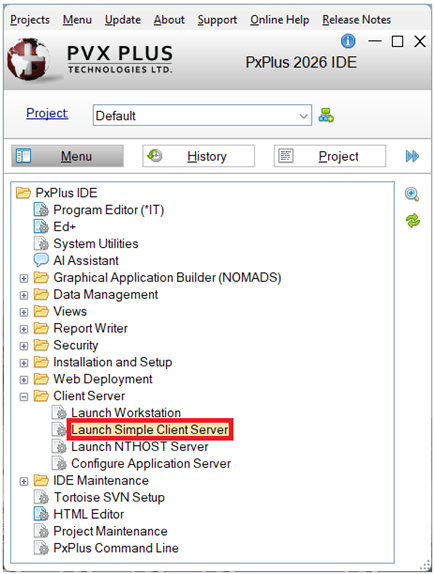 |
2. | Verify that the PxPlus Simple CS Host is running. Click the Show hidden icons arrow on the Windows taskbar. Hover over the icon shown below to verify that the PxPlus Simple CS Host is running on the default port, 4093.  |
3. | Launch Workstation. From the PxPlus IDE Main Launcher, expand the Client Server category and select Launch Workstation. 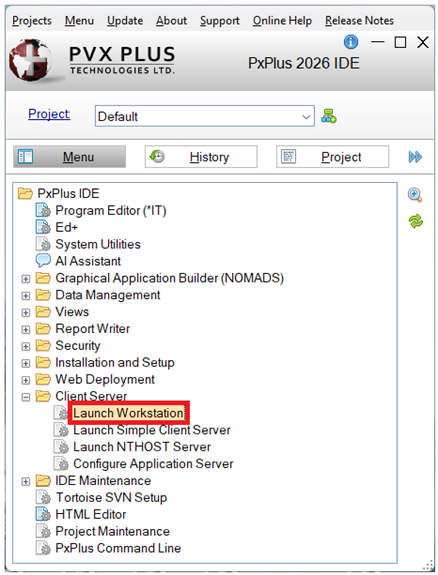 |
4. | Define a connection. The WindX Connection Manager displays, where you can define a connection as shown below. 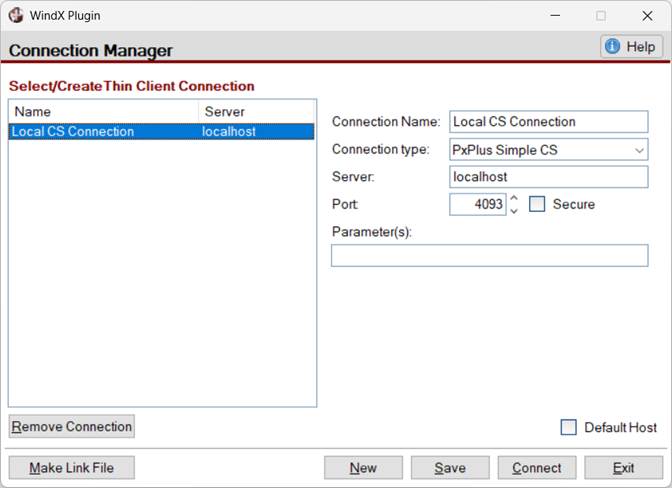 |
5. | Save the connection. Click the Save button to save the connection information for future use. |
6. | Initiate the connection. Click the Connect button to initiate the WindX connection. The WindX connection is made, and the window below is launched. Any changes made to a program locally will also be there while using the WindX connection. 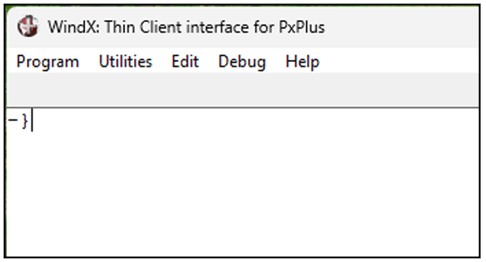 |
See Also
'TU' - WindX Turbo Mode
TMR() - Timer
Pseudo Multi-Properties
How to Speed Up Grid Loading and Processing
WindX Connection Manager