How to Process Multiple Files with the Report Writer
Many apps using PxPlus have been in existence for many years and usually have legacy reports that are generated through programs. Some use out-of-the-box reporting such as Crystal Reports, and some use the PVX Plus Report Writer.
The PVX Plus Report Writer is a powerful reporting tool that can simplify the creation of new, complex reports for your users. End-users can create and design reports themselves by using the Report Designer drag-and-drop interface or the Report Wizard, which guides them step by step through the design process.
One drawback that end-users encounter when using out-of-the-box reporting software is that most reports are not built from a single file but pull data from multiple interrelated files. This requires end-users to understand the data structures well enough to set up the links between the input sources to retrieve the required data. With the PVX Plus Report Writer, however, end-users do not need to understand how the data is mapped, as there are several ways to set up and present pre-mapped input sources. These methods make it easy for end-users to create reports, as well as for the developers to create reports for them.
The developer can set up pre-mapped input sources for a report in three ways:
Using the File Link Maintenance utility to define relationships that are available to the Report Writer when selecting a table or path name as the input source.
Creating PxPlus Query Definitions to specify data sets.
Using the Views System to define the related data.
All three methods require the developer to initially create the file links, query definitions or views that will be used in the reports. Once the mappings are set up, the Report Designer can create the appropriate links when the Input Source is set to Table Name, File Path, Query Definition or View.
File Link Maintenance
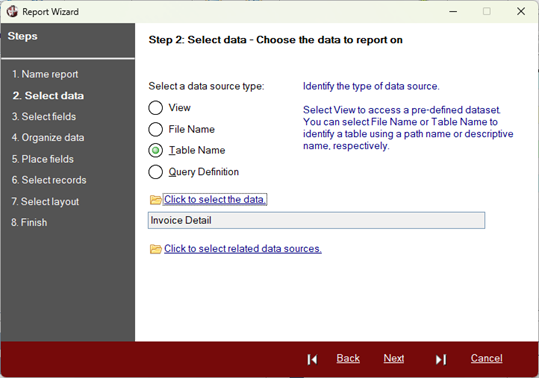
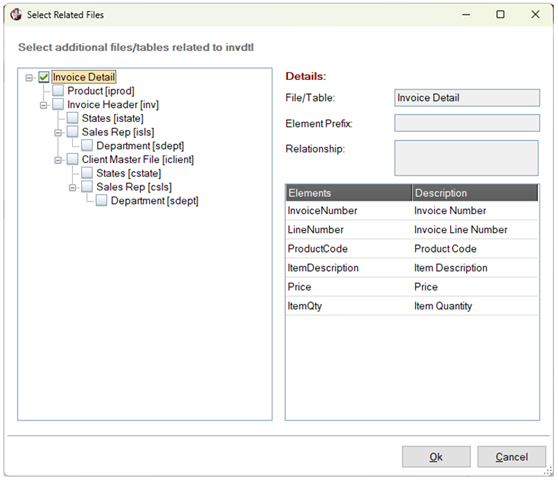
To access multiple related files when a Table Name or File Path is specified as the input source, the developer first uses the File Link Maintenance utility to define how the various files are related. Then, in the Report Designer or Report Wizard, you can select Related Data Sources, which presents a hierarchy of related files from which to choose the files to include:
Query Definitions
The Report Writer supports data sets generated based on PxPlus Query Definitions. The query definitions need to be set up initially by the developer.
Since query definitions allow the developer to define links to related files, the resulting data set is a flat file containing data from multiple files. Query definitions also allow the developer to select just the pertinent fields, making it easier for the end-user to navigate.
Views
The Views System allows the developer to define, present and process end-user views of various application data. The developer can define data sets consisting of pertinent related data from multiple files that can be accessed in the Report Writer as though they were flat files. These would be set up in advance by the developer.
Advantages and Disadvantages
This table outlines the advantages and disadvantages of each of these three methods:
Method | Advantages | Disadvantages |
|---|---|---|
File Link Maintenance | The relationship definitions can also be used to auto-fill relationship information in views and query definitions. | Less straightforward for the end-user, as they must choose the relevant files, and all fields in the files are available rather than just the pertinent ones. No one-to-many relationship. (See Note below.) |
Query Definitions | Ease of use. A query definition that consists of pertinent information from multiple files and is given a meaningful name makes it easy for report designers to select a query that suits their needs. Query definitions are easy to set up, especially for the developer who is already familiar with the PxPlus Query Subsystem but not with the Views System. | No one-to-many relationship. (See Note below.) |
Views | Ease of use. A view that consists of pertinent information from multiple files and is given a meaningful name makes it easy for end-users to select a view that suits their needs. When defining a view, the developer can define one-to-one or one-to-many relationships between files. (See Note below.) Depending on the sophistication of the end-users, the developer could give them access to the View Maintenance utility to define their own views. |
See Also
Report Writer
Report Designer
Report Wizard
File Link Maintenance
Query Subsystem
Views System